
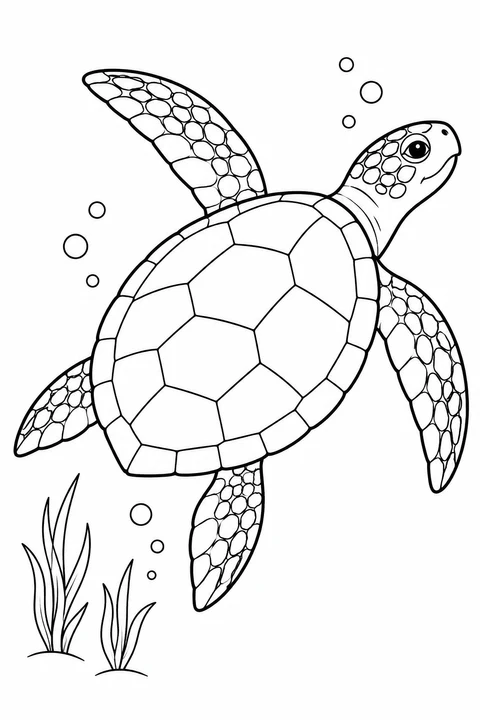
Turtles & tortoises
Turtles, Near & Far
Four coloring pages featuring two sea turtles and two tortoises, with seagrass, rippled sand, a burrow and leafy branches to explore. Includes a cover and short read-along text for each page.
No account needed to browse or print.
Inside this book
Preview every page below. Open any picture to download or print it on its own.
- 1
Into the blue
Our turtle journey begins underwater. A sea turtle stretches its flippers and glides past the bubbles.
View coloring page - 2
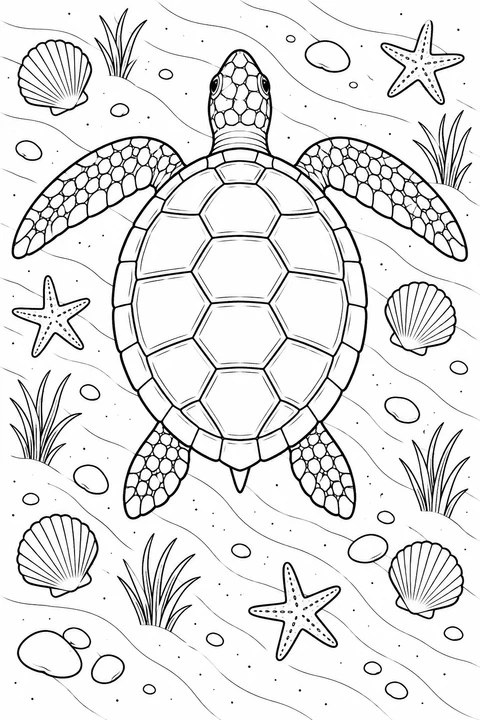
A view from above
Look down at another sea turtle over rippled sand. Can you find the shells and sea stars around it?
View coloring page - 3
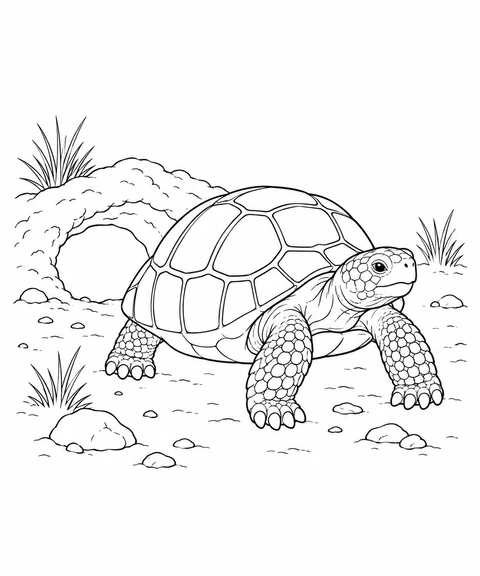
A home on land
Now we visit a tortoise beside its burrow. Compare its sturdy legs with the sea turtles’ flippers.
View coloring page - 4
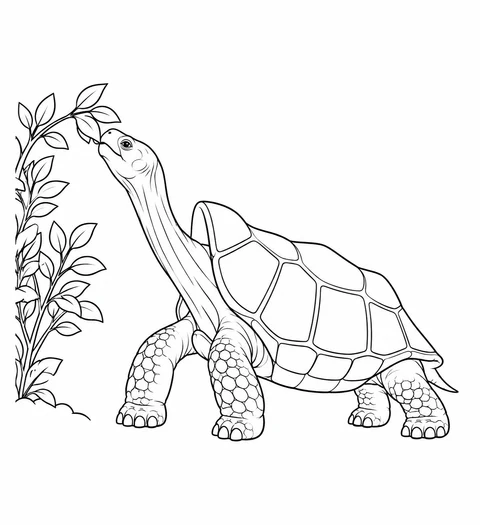
Reaching for a leaf
Another tortoise stretches toward the leaves. Our journey ends with a question: which turtle would you like to draw next?
View coloring page
Questions & answers
Download & print
Can I download just one coloring page?
Yes. Click a page in “Inside this book” to open its existing coloring-page detail, where you can download or print that picture. The book’s PDF button exports the complete book. For just part of the book with its story lines, use the book maker and remove the pages you do not want.
Where will the words appear in the printed book?
The PDF and printed book start with a cover, followed by the pages in the order shown. Each page’s title and short text appear below the picture. To change or remove the words, or adjust their layout, open these pages in the book maker.
How do I save the PDF on my phone?
Keep this page open while the PDF is prepared. When it is ready, choose “Save or share PDF” if available. On iPhone or iPad, choose “Save to Files” in the system menu, select a folder and save. “Download PDF” is also available. If it opens a preview instead, use the browser’s share menu to save the file. If an in-app browser has no save controls, open the book page in Safari or your usual browser and download again.
Can I print a book at home or for my class?
Check faces, fine lines and empty coloring areas before exporting. Try the first sheet at actual size on A4 or US Letter, then print the remaining pages one-sided. For personal and educational use. Read the usage rights for sharing and other uses. Usage Rights
Make a book with these pictures
Can I change the cover or combine these pages with my own?
Choose “Use these pictures in my book” to open the pictures and story text in the maker. You can change the title, cover and page order or add your own pictures. Adding to an existing book keeps its name and cover; repeated pictures are skipped.
What if these pictures will not fit in my current book?
After you choose “Use these pictures in my book”, we check how many new pages fit in your current book. The limit is 10 inside pages plus a cover; repeated pictures are skipped. If there is not enough room, choose “Manage pages in the maker” to remove pages, or “Start a new book” to make a separate draft with these pictures and story text. An unsaved current draft is replaced only after a second confirmation, and replacement cannot be undone. To keep it editable, open it and finish saving to My Library first; sign in if needed, then choose Save again. Signing in alone does not save it. Books already saved in My Library are kept.