A short drawing from scratch
Load a blank template and set 12 rows, 12 columns and 10 mm cells. The 120 × 120 mm grid gives you fewer, larger squares to draw and copy.

Draw pixel art, adjust the grid and add your own words. Make a color reference and a matching blank practice sheet, then save a PDF, download a PNG or print.
Free, no account needed. Your picture and text stay in this browser tab. Download before leaving.
Rows and columns set how many squares you can draw in. Cell size sets the size of each square on paper. Start with these settings, then check the preview.
Load a blank template and set 12 rows, 12 columns and 10 mm cells. The 120 × 120 mm grid gives you fewer, larger squares to draw and copy.
Keep 18 rows, 18 columns and 8 mm cells. The 144 × 144 mm grid preserves the whole apple shown below and fits both A4 and US Letter.
Grid width = columns × cell size; height = rows × cell size. These measurements exclude margins and numbers. Leave rows and columns linked for a square grid; unlink them for a rectangle.
Choose the grid size before drawing. Adding rows or columns extends the grid; shrinking it cuts from the bottom or right rather than scaling the picture. Undo restores it. If it will not fit the paper, reduce cell size or use Fit grid to paper.
Add any words you need. Move or resize them in the preview so they do not cover important cells.
Actual exports from the apple template: 18 × 18 squares, 8 mm cells, 0.2 mm lines and row/column numbers. The A4 pages below are also available as a two-page US Letter PDF. No extra text was added to this example.
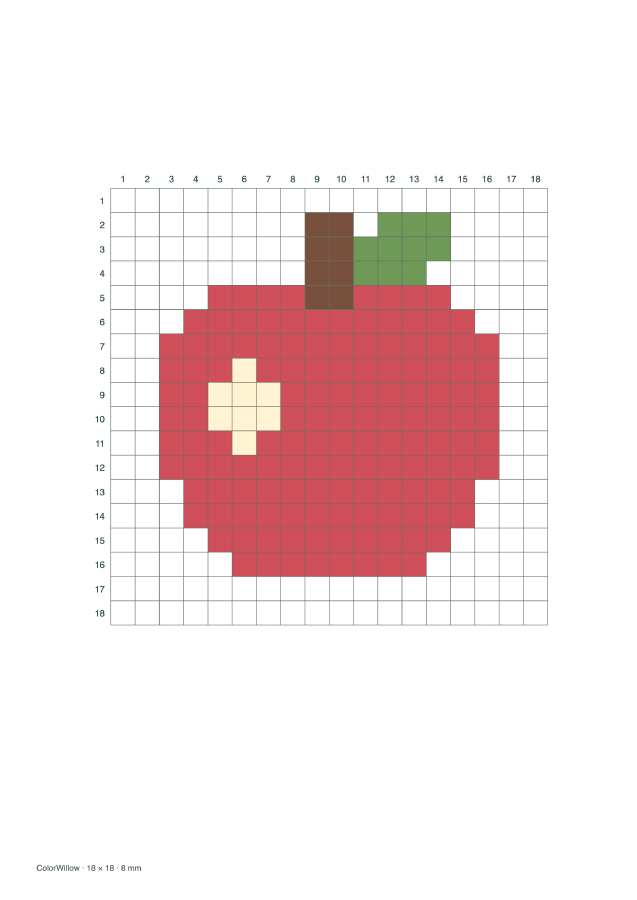
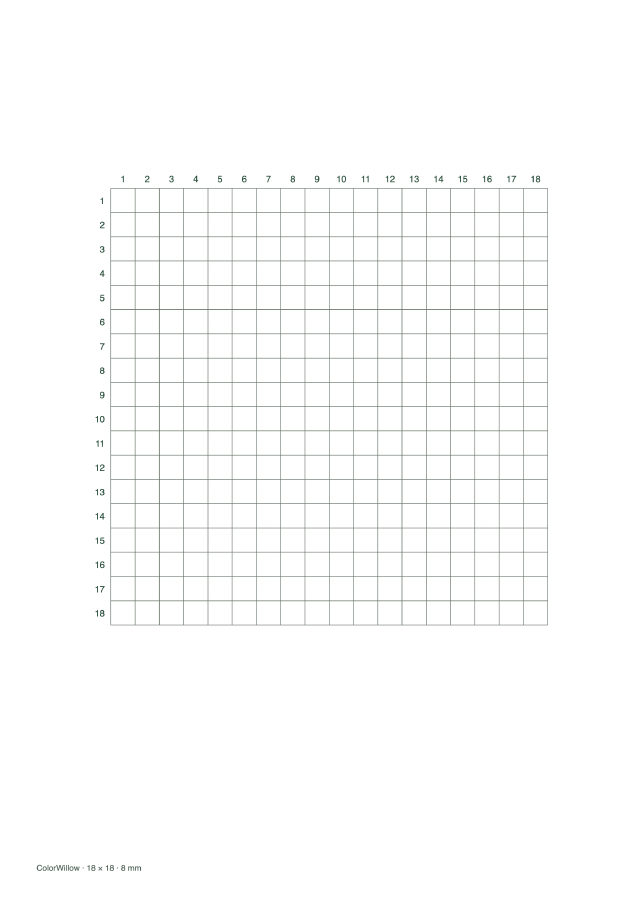
Download this example · 2 pages
Before exporting, check that the whole grid and its numbers fit, your text stays clear of important squares, and the practice page has the same rows and columns as the reference.
This free tool needs no account. Drawings and text stay in this tab, without automatic saving. Download before refreshing or closing it. PDF and PNG keep the output, not an editable project you can reopen in this tool.