
Turn Family Photos into Coloring Pages
Make a coloring page from a family moment, a small group portrait or a clear scan of an older photo. Start with faces you can see well, then choose the drawing and print size that suit your activity.
- Clean outlines
- Custom styles
- Adjustable detail
Checking your account…

See what your photo can become
My creations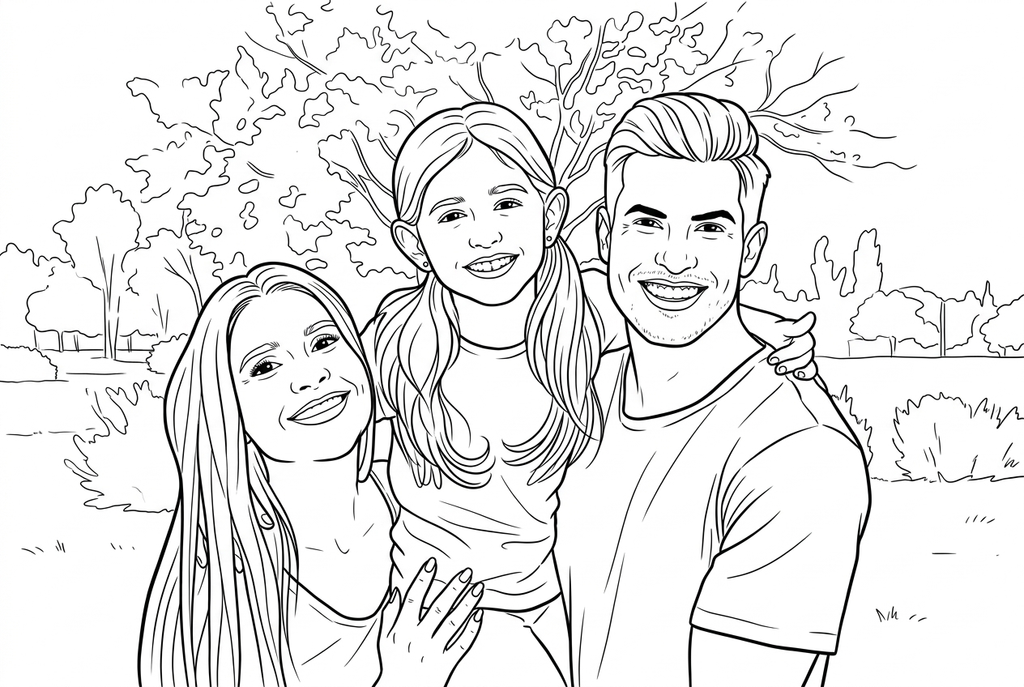
Generating your page
This result is temporary and has not been saved to your account.
Optional: save only the result to your account. Uses storage, not credits.
Match the paper size in your browser’s print dialog.
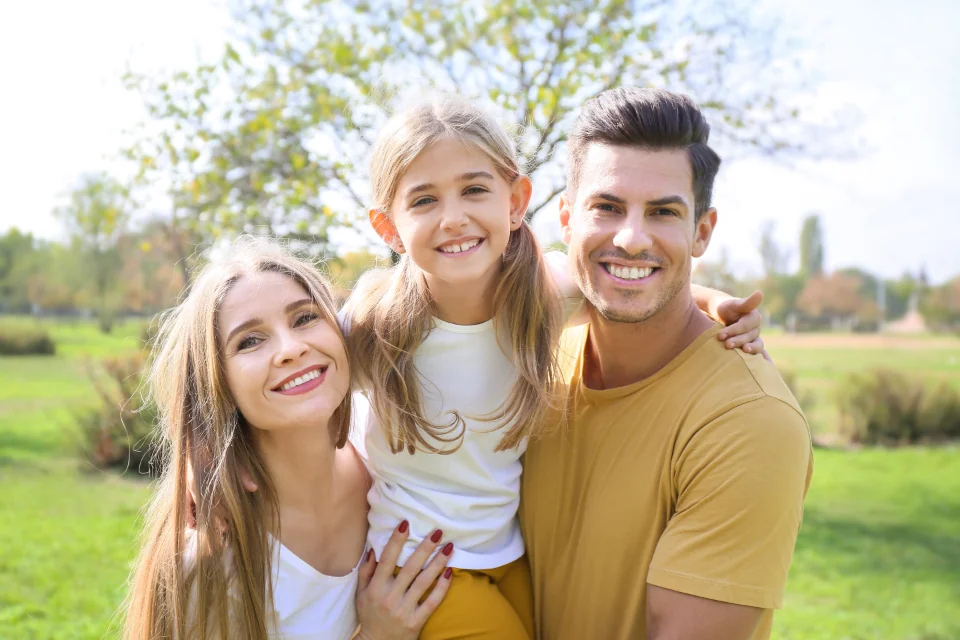
Photo: Family Moments · CC0 1.0 · License
Redraw photo textures as clean outlines, with clearer shapes and open spaces for coloring.
- Keep the people and setting in one coloring scene
- Adjust clothing detail for the size you will print
- Reuse the chosen drawing for family copies
Conversion status
You can leave this page and come back. Your AI task continues in the background.
Turn one family moment into a page worth keeping
Choose a smaller group or preserve the setting according to the memory.
Give every face enough room
Choose a clear permitted photo with fewer overlapping heads and hands. Prepare a closer crop outside the tool if a wide group leaves faces too small.
Decide whether the place belongs
Start AI with Classic, Medium detail, Bold lines and Keep background. Compare Simplify for a more focused group portrait when the location is not part of the memory.
Review each person, then add the memory
Check all faces and glasses against the original. Print the chosen result and add a real date or caption by hand for a family timeline.
Photo tips: Family photos
- Look at every face in the photo, not just the person closest to the camera.
- Choose a group with fewer overlapping heads and hands if likeness is important.
- Prepare a sharp digital copy of an old print, without a reflective album sleeve.
- Crop borders or handwritten album notes outside ColorWillow if you do not want them included.
Keep a family moment in the drawing
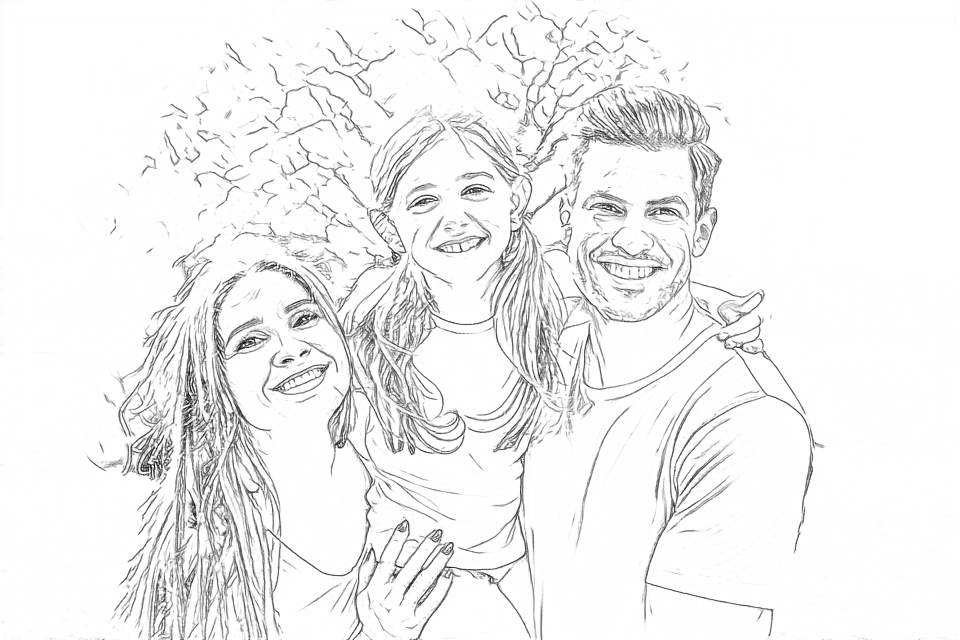
Compare the fine contours in Free with AI’s larger clothing and face shapes. The Keep version retains the trees and lawn.
Free: follow the visible edges
AI: simplify the drawing for color
AI can change small features. Compare the drawing with the photo before printing or making a keepsake.
Explore other AI drawing choices
Compare the starting point with two drawing choices from the same photo. Look at the shapes and lines, then use the settings beneath the result you prefer.
Starting point: AI can change small features. Compare the drawing with the photo before printing or making a keepsake.
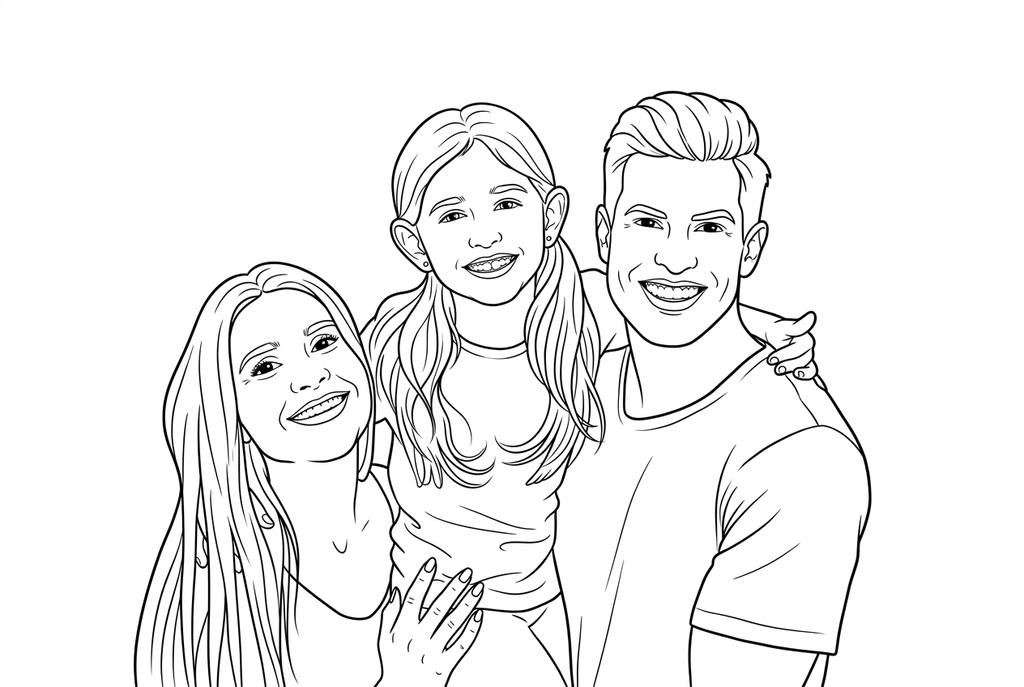
Compare the people with fewer surrounding scene details.
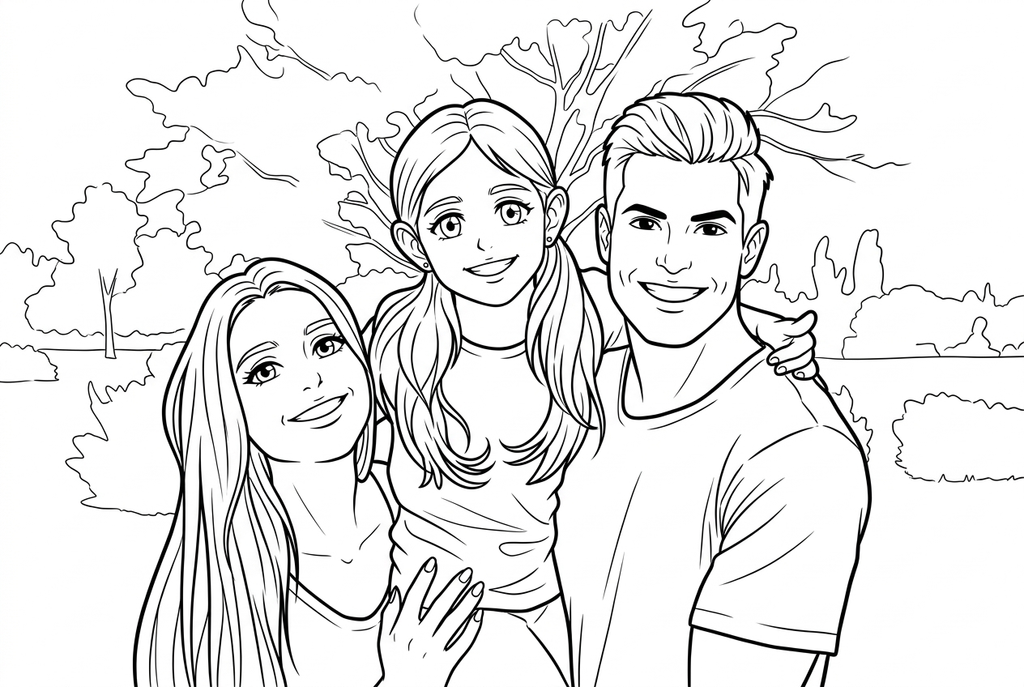
Anime keeps the three-person scene but stylizes the eyes, faces and clothing. Check each person and the hands before printing.
Keep each person large enough to recognize
In a wide group photo, every face receives less space in the drawing. Compare a smaller group or a closer crop if the page is mainly about recognizing relatives.
A whole scene may be more useful for remembering an event. In that case, keep the place visible and accept that small faces can become simpler.
Prepare old photographs before converting
Use a scan or a steady photograph of the print. Reflections, paper creases and album borders can become lines, particularly in Free. Check the digital copy before choosing it here.
The converter is not a photo-restoration tool. Missing features and severe fading cannot be reliably recovered; choose a clearer picture when a face matters.
Make a family memory timeline
Start with Classic and Medium detail for an AI group picture. Bold lines can make larger shapes easier to follow, but inspect glasses, hands and neighboring faces before printing.
Convert a few distinct moments individually, add dates by hand and place the pages in order. The timeline activity explains how to choose memories and arrange a paper display without a new book editor.
Check the drawing before making copies
Inspect the features that matter to this photo and its intended paper use.
Compare every person, including small faces at the back of the group, with the original.
Check overlapping hands, glasses and neighboring heads for merged or altered outlines.
Print at the planned timeline or display size; keep faces large enough to recognize before making copies.
Keep a result you can use again
Free: keep the file before leaving
Download the PNG or print on A4 or Letter. Conversion runs on your device; refreshing does not retain an unsaved result. Sign in only if you choose to save to My creations.
Free photo conversionAI: return to the finished task
Sign in and submit with the displayed credits. Open the saved result to download, export or print. Review the drawing beside your source before using it for the activity.
AI photo conversionPrint another copy of a selected result without generating again. A new AI submission uses credits. For a PDF from Free, use your browser's print-to-PDF option where available.
A ready-to-print page can work alongside your photo
These free coloring collections offer another picture for the activity, or a starting point when you do not want to use a photo.
Questions about Family photos
Choose a smaller group or preserve the setting according to the memory.
Will every face look exactly like the photograph?
No exact likeness is guaranteed. AI can reinterpret faces, and Free may miss faint edges. Check each person before using the result as a keepsake.
Can I use a black-and-white family photo?
Yes, if the features are visible and the file is supported. Color is less important than a clear digital copy.
Can I convert the whole album at once?
This workspace takes one image at a time. Choose a few photos, convert them individually and print the results you keep.
What should I do if one face in the group is unclear?
Use a closer source or separate portrait rather than judging only the largest face. Inspect each person at the intended print size; AI cannot guarantee reconstruction of a blurred face.
Start with the photo you want to color
Choose a smaller group or preserve the setting according to the memory.