Photo conversion guide
Choose a photo, understand the controls and solve common file or printing problems.
From photograph to printable outlines
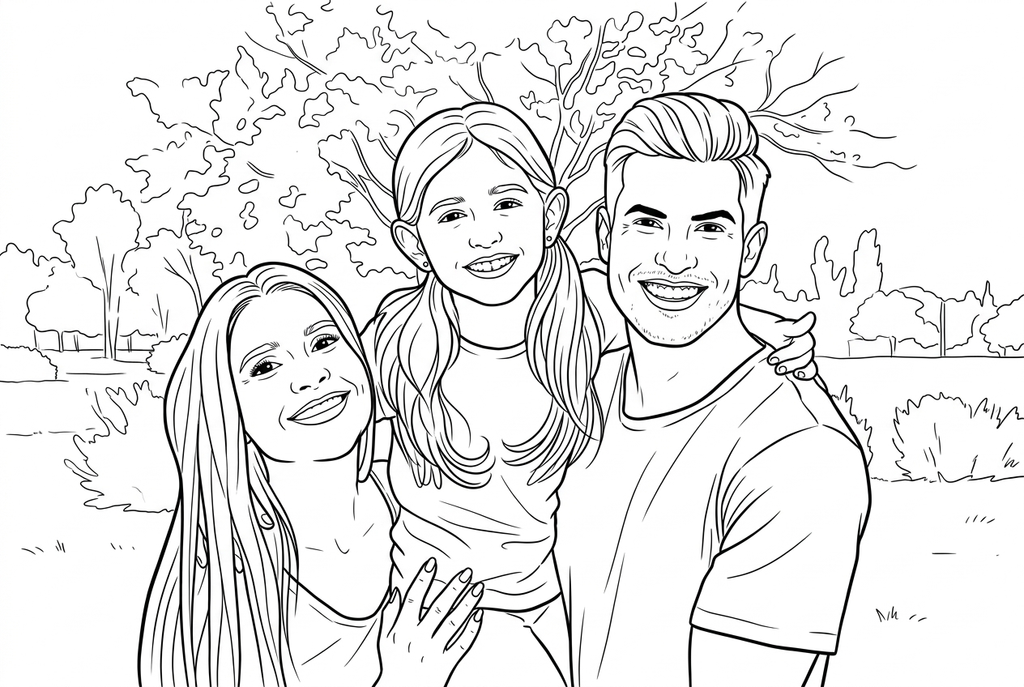
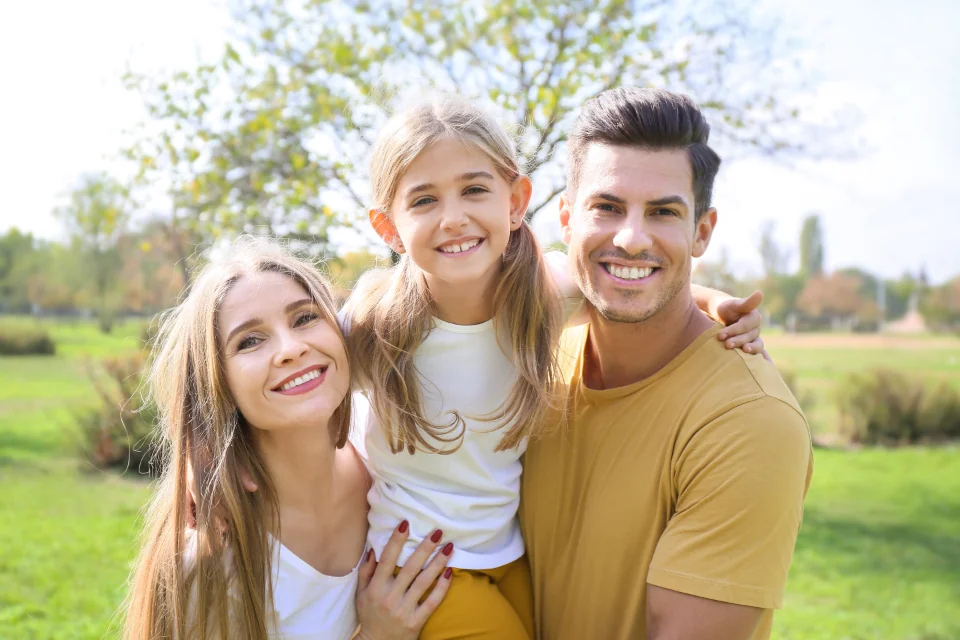
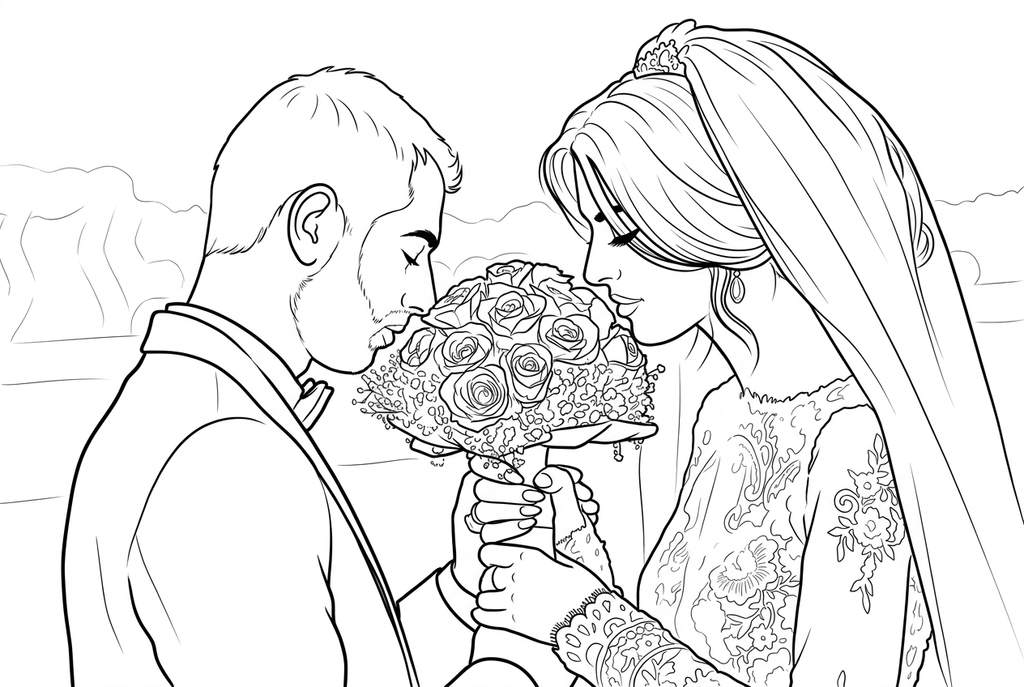
Explore real drawings from family, wedding and flower photos. Each caption shows the settings used.
A family moment
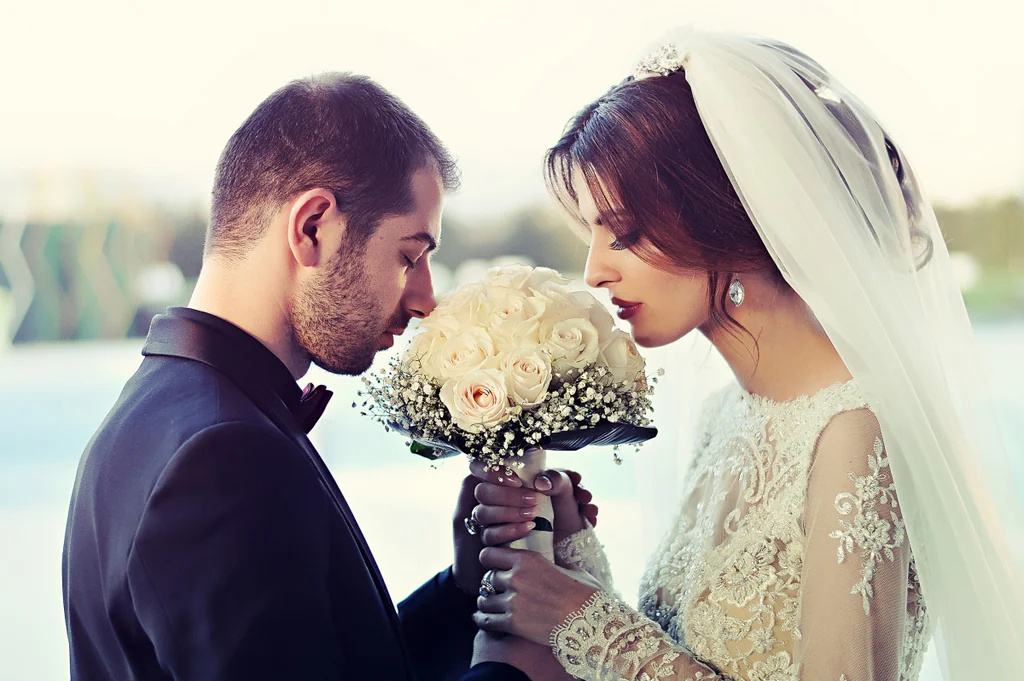
A wedding keepsake
Three flowers
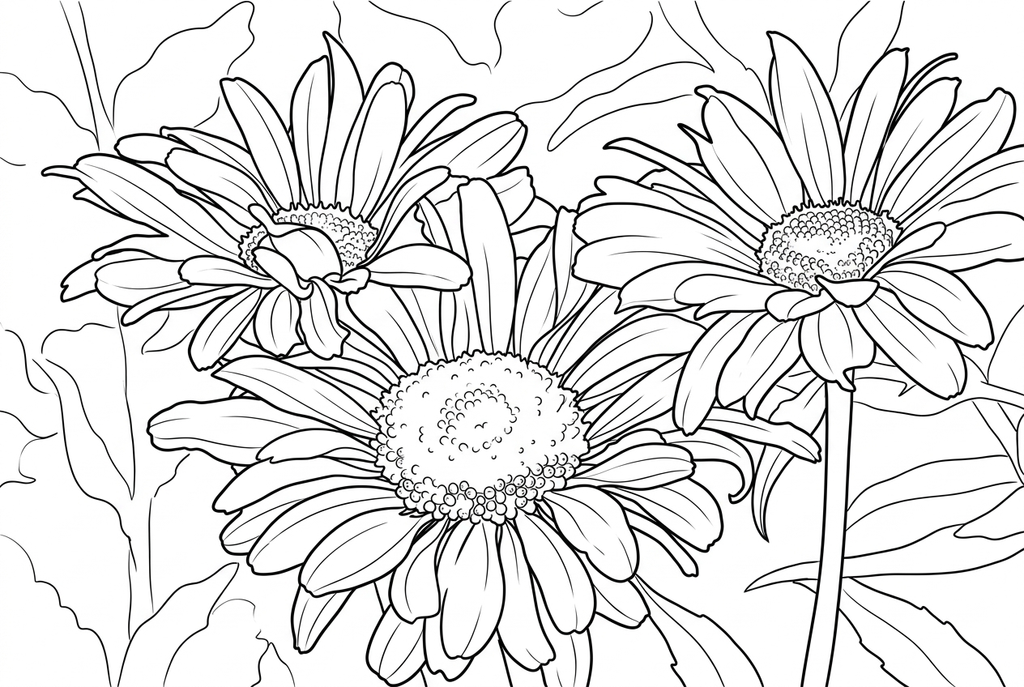
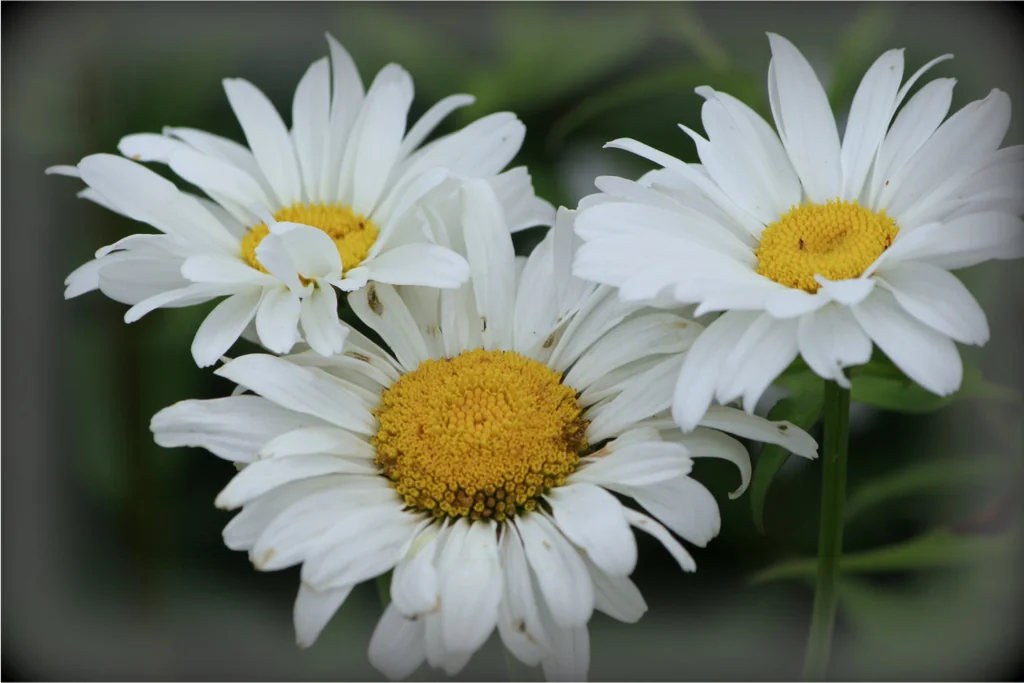
These drawings retain the scene. AI can change small features, so compare your result with the original before printing.
Prepare the photo
Use a sharp subject with space around its edges. Crop distracting objects in your photo app before selecting the file. For people and pets, keep eyes and ears in the frame; a distant group gives each face fewer pixels.
- Use a sharp photo with one main subject and clear separation from the background.
- Avoid tiny faces, overlapping subjects and busy textures; these can become dense lines.
- Use only images you have permission to use, including permission from people pictured.
Choose how to convert
Free conversion
Free conversion follows visible edges, including fur and background textures. AI can redraw shapes, reduce detail and simplify the background. Compare the results from the same photo; AI can also change likeness, so inspect faces and markings before printing.
AI conversion · Uses credits
Free conversion, PNG download and printing need no account or credits. Sign in to save a result. AI requires sign-in and uses the credit cost displayed before you generate.
Free conversion, PNG download and printing need no account or credits. Sign in to save a result. AI requires sign-in and uses the credit cost displayed before you generate.
Choose the right settings
Drawing style
Styles are available with AI conversion. They change how shapes are drawn; they do not add color
- Classic
- Keep the subject close to the photo
- Anime
- Crisp, expressive illustrated contours
- Kawaii
- Softer, rounder and simpler features
- Comic
- Strong silhouettes and confident contours
Line weight
Line weight changes how strong the outlines look, not how many details are drawn. Free conversion offers a small adjustment; AI conversion requests bolder contours and may change the drawing.
Simple asks for fewer interior lines and larger coloring areas. Medium balances shapes and detail. Detailed requests more visible features, which can crowd small faces and textures.
Keep retains the surrounding scene. Simplify asks AI to reduce distractions around the subject; it is not a precise background cutout.
File formats and upload help
JPEG, PNG, WebP or HEIC/HEIF, up to 10 MB and 20 megapixels. Animated images are not supported.
- Size and pixels
- A photo must fit both limits: 10 MB and 20 megapixels. Resize or crop it in your photo app if needed.
- Phone photos
- HEIC/HEIF photos are decoded on your device before use. Keep the original; animated images are not supported.
- Still images
- Animated PNG and WebP files are not supported. Choose a single still frame.
- A file will not open
- Export a fresh JPEG, PNG or WebP. Renaming a file does not convert its contents.
Drawing size and paper size
Free conversion offers 512 or 1024 px on the longest side: 1024 keeps more detail but needs more memory. Desktop defaults to 1024; phones and tablets to 512. Small images are not enlarged. A4 and Letter set the paper layout, without adding image detail.
Check faces, small details and thin lines. Download the temporary PNG, or open a saved page in My creations for PNG, A4/Letter PDF and printing.