Turn an Image into Clear Outlines
Start with a photo, scan or screenshot. AI can redraw the subject with cleaner lines and larger areas for color; Free follows the visible edges on your device. Compare the drawing with your original, then download or print the outlines you want to use.
- Clean outlines
- Custom styles
- Adjustable detail
Checking your account…

See what your photo can become
My creations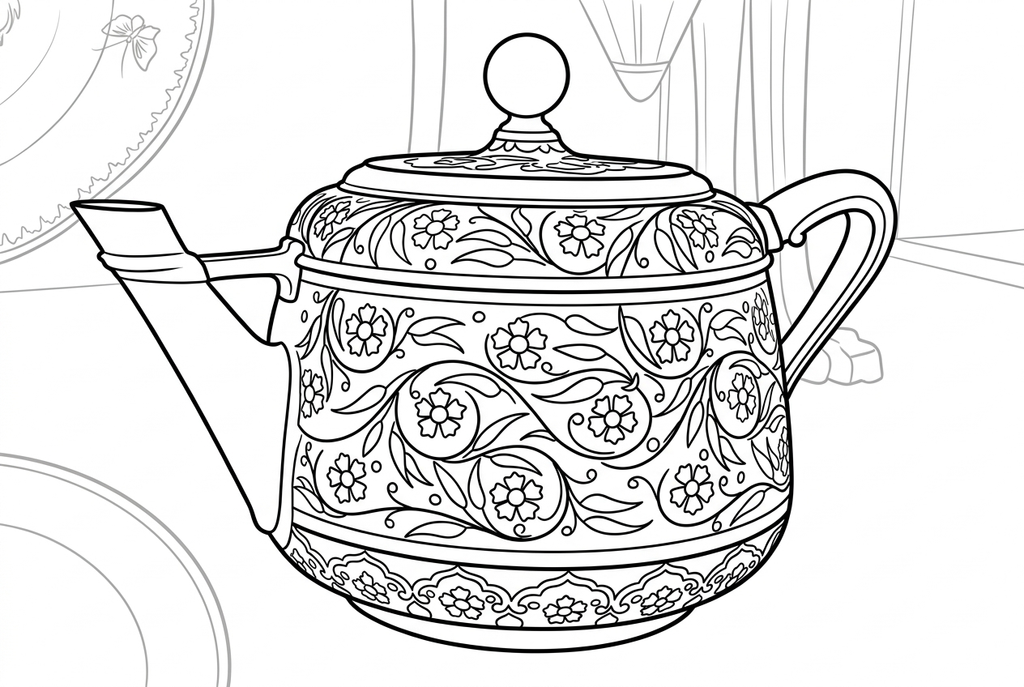
Generating your page
This result is temporary and has not been saved to your account.
Optional: save only the result to your account. Uses storage, not credits.
Match the paper size in your browser’s print dialog.
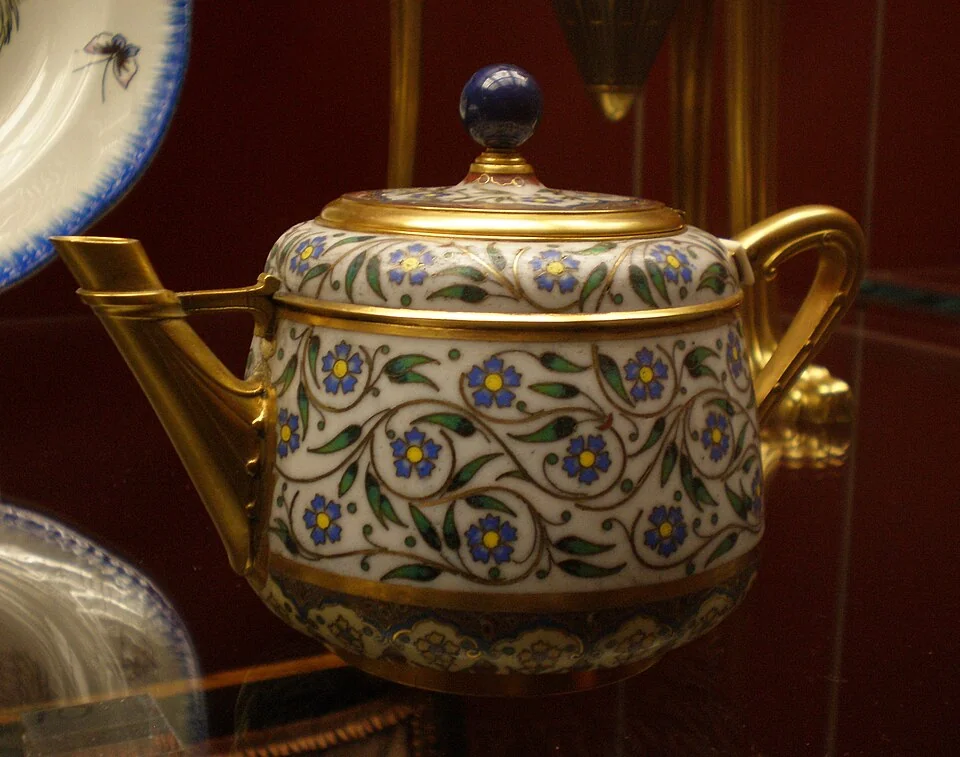
Photo and adapted outlines: David Jackson · CC BY-SA 2.0 UK · License · Adapted
Redraw photo textures as clean outlines, with clearer shapes and open spaces for coloring.
- Try broader coloring shapes with AI Simple detail
- Compare drawing styles or switch to Free on your device
- Download contours for a paper tracing activity
Conversion status
You can leave this page and come back. Your AI task continues in the background.
Choose how to turn your image into outlines
A plain source helps distinguish the object boundary from extra texture.
Select one complete shape
Use an object photo, scan or screenshot with a quiet background. Leave handles, stems and tails in the frame and avoid overlapping subjects.
Start with an AI drawing or compare Free
Try Classic, Simple detail and Bold lines with the background kept. Switch to Free for visible edges processed on your device. AI can change shapes, so choose the result that fits your paper activity.
Use a selected contour on paper
Check gaps and overlaps against the original. Download the PNG or print a reference, then trace or transfer the outer shape by hand for a collage.
Photo tips: Image outlines
- Photograph one object against a plain surface with a clear light-dark boundary.
- Keep the entire contour in the frame, including a handle, stem or tail.
- Avoid overlapping objects if you want separate recognizable shapes.
- For a photographed drawing, keep the paper flat and avoid camera shadows.
Follow the spout, handle and painted flowers
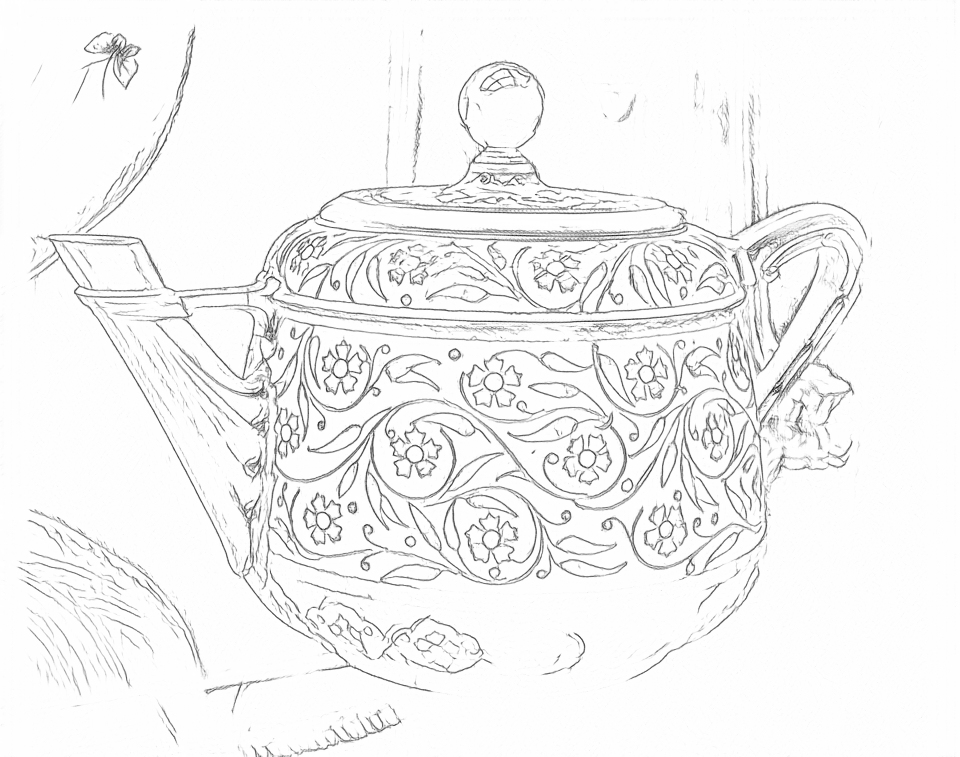
Free follows the flowers and some background edges. AI redraws the teapot and its decoration, with the whole spout and handle visible.
Free: follow the visible edges
AI: simplify the drawing for color
Compare the spout, handle and flowers with the photo. AI changes the decoration and keeps some display-case outlines.
Explore other AI drawing choices
Compare the starting point with two drawing choices from the same photo. Look at the shapes and lines, then use the settings beneath the result you prefer.
Starting point: Compare the spout, handle and flowers with the photo. AI changes the decoration and keeps some display-case outlines.
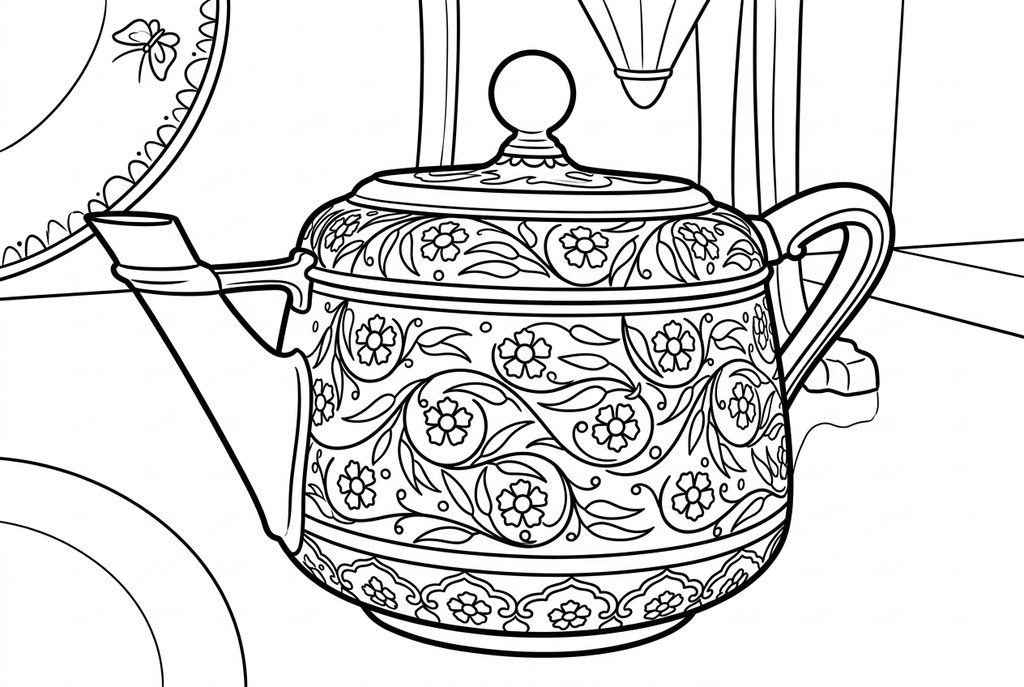
Comic uses strong background contours and redraws the small flowers. Compare the decoration with Classic.
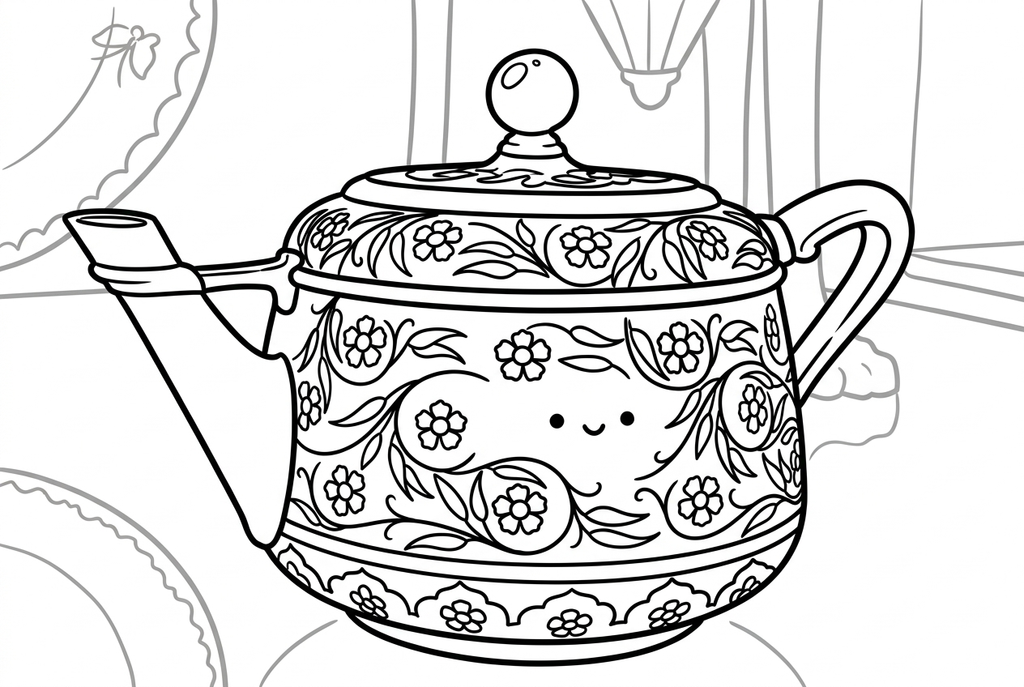
Kawaii simplifies the flowers and adds a smiling face to the teapot. This is a playful redraw, not an exact outline.
A contour is different from a silhouette
An outline follows boundaries, but Free can also retain lines inside the object, reflections and background texture. It does not automatically isolate only the outside edge or fill a solid silhouette.
If the activity needs a single outer shape, choose a simpler source and trace the boundary you want by hand after printing. The paper collage activity explains how to transfer that shape onto colored paper.
Choose the line detail you want
- Classic
- Simple
- Bold
- Keep background
The AI starting point uses Classic, Simple detail and Bold lines with Keep background. Compare Detailed for more interior marks or Kawaii for a playful interpretation. Simplify background can request fewer surrounding shapes; inspect the actual result before using it as a reference.
Free starts at 1024 px on desktop and 512 px on phones and tablets. Select either longest-side size; smaller sources are not enlarged. Standard keeps the line weight, while Slightly thicker strengthens fine marks without removing extra edges.
Use the outline for a real paper task
An outline can help you notice a shape, trace a reference or prepare a collage by hand. Print one test copy at your intended size and check that narrow parts remain visible.
Download the raster PNG or print it using A4 or Letter. There are no editable vector paths, automatic cut lines, transparent-background exports or cutting-machine files in this converter.
Check the drawing before making copies
Inspect the features that matter to this photo and its intended paper use.
Check that the full outside shape, including handles, stems or tails, remains visible.
Distinguish the object contour from background texture, reflections and interior detail lines.
Before transferring a paper shape, compare gaps and overlaps with the original and plan your own manual outline.
Keep a result you can use again
Free: keep the file before leaving
Download the PNG or print on A4 or Letter. Conversion runs on your device; refreshing does not retain an unsaved result. Sign in only if you choose to save to My creations.
Free photo conversionAI: return to the finished task
Sign in and submit with the displayed credits. Open the saved result to download, export or print. Review the drawing beside your source before using it for the activity.
AI photo conversionPrint another copy of a selected result without generating again. A new AI submission uses credits. For a PDF from Free, use your browser's print-to-PDF option where available.
A ready-to-print page can work alongside your photo
These free coloring collections offer another picture for the activity, or a starting point when you do not want to use a photo.
Questions about Image outlines
A plain source helps distinguish the object boundary from extra texture.
Does the free image-to-outline converter upload my photo?
No photo is uploaded for Free conversion. Processing happens on this device. If you choose to save the result to My creations, that drawing is uploaded.
Will it keep only the outside edge?
No. Interior details and background texture can become lines too. Use a plain source or trace the selected outer contour by hand.
Can I use a scanned drawing or screenshot?
Yes, as a JPEG, PNG, WebP or HEIC/HEIF still image within the limits shown in the workspace. Paper shadows, text and borders can create extra outlines.
Can I export a transparent PNG, SVG or stencil file?
The current output is a raster drawing for downloading and printing. Dedicated transparency, vector tracing and cut-ready stencil files are not provided.
Why would I choose AI instead?
AI can simplify the drawing and background using the options above. It is a reinterpretation rather than a guaranteed exact trace; use the result that fits your task.
Does 1024 px make an outline more accurate?
It can retain more visible detail than 512, including extra texture. It does not guarantee an exact outer contour or repair a missing edge; check the result against your source.
Start with the photo you want to color
A plain source helps distinguish the object boundary from extra texture.