Turn a Photo into Black-and-White Line Art
Make a black-and-white drawing from a photo and decide how much interior detail to keep. Line art can include hair, clothing folds and texture, while a coloring page needs open spaces you can fill. Use the same source to judge which result serves your paper activity.
- Clean outlines
- Custom styles
- Adjustable detail
Checking your account…

See what your photo can become
My creations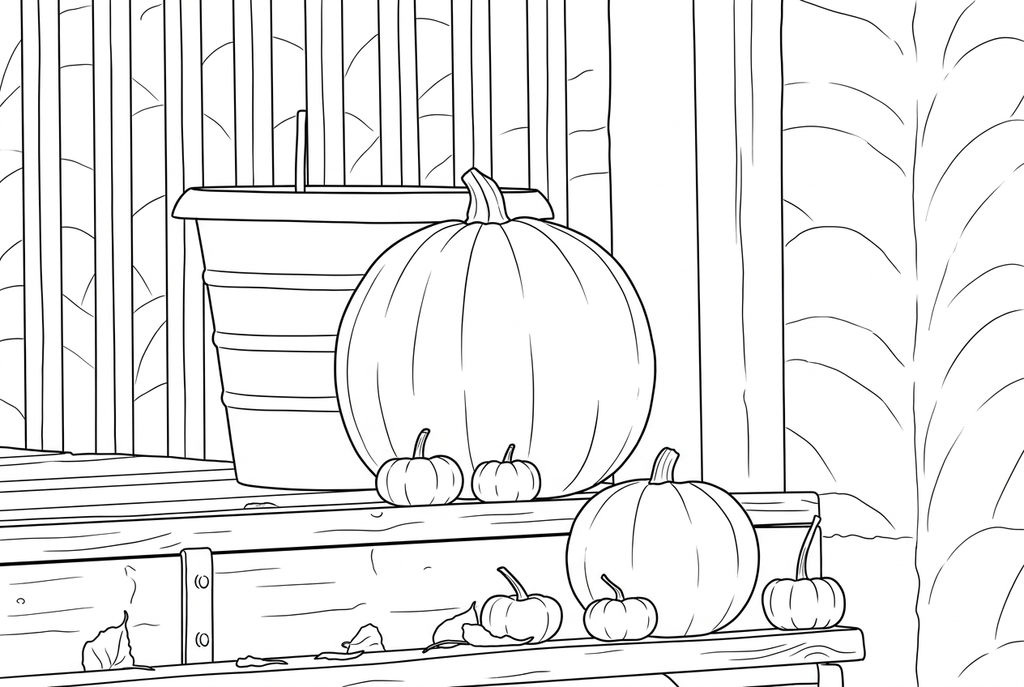
Generating your page
This result is temporary and has not been saved to your account.
Optional: save only the result to your account. Uses storage, not credits.
Match the paper size in your browser’s print dialog.
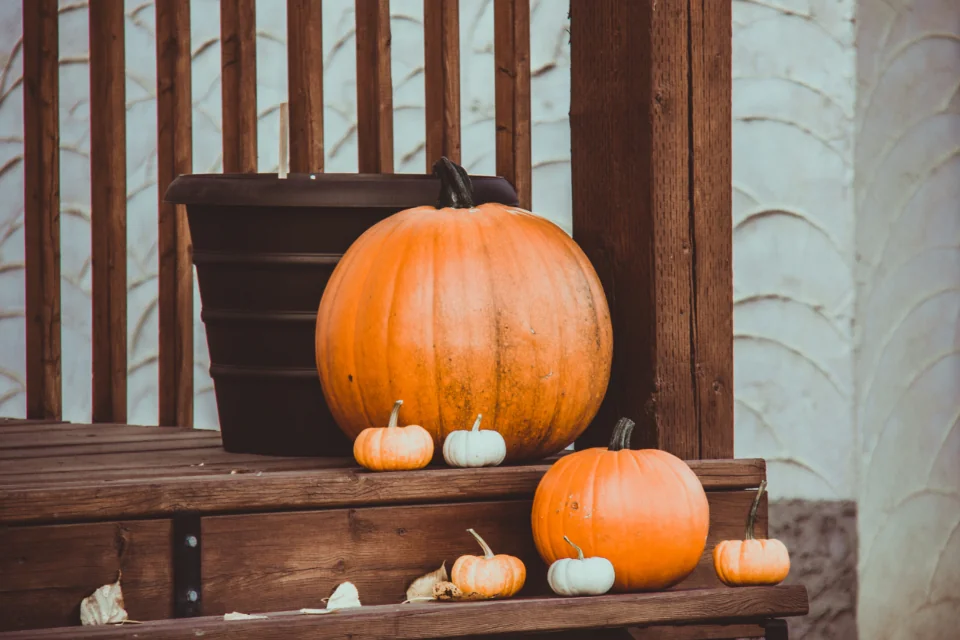
Photo: Elliott Chau · CC0 1.0 · License
Redraw photo textures as clean outlines, with clearer shapes and open spaces for coloring.
- Choose interior detail and line weight
- Download a raster drawing for printing or tracing
Conversion status
You can leave this page and come back. Your AI task continues in the background.
Choose the contours and interior lines your activity needs
Line art for observation may use more marks than a page made for coloring.
Choose a sharp photo with useful contours
Start with one object or a close portrait. Decide whether folds, hair or texture belong in the reference and keep the original for comparison.
Compare interior detail deliberately
Try AI Classic, Detailed detail and Standard lines, then compare Medium if it is crowded. Try Free for visible source edges without a redraw.
Inspect and print a readable reference
Check proportions and features against the photo. For tracing, choose a few clear contours and print large enough to follow them by hand.
Photo tips: Photo line art
- Choose a sharp subject with visible contours; soft shadows are harder to turn into readable lines.
- Use a close portrait or one object when small features matter more than the setting.
- Separate the subject from patterned wallpaper, grass or other busy textures.
- Keep the source photo beside your drawing when observing proportion, folds or markings.
See how line weight changes a detailed scene
These uncarved pumpkins, steps and plants make a detailed line-art example. Compare Standard and Bold lines at the same Detailed setting.
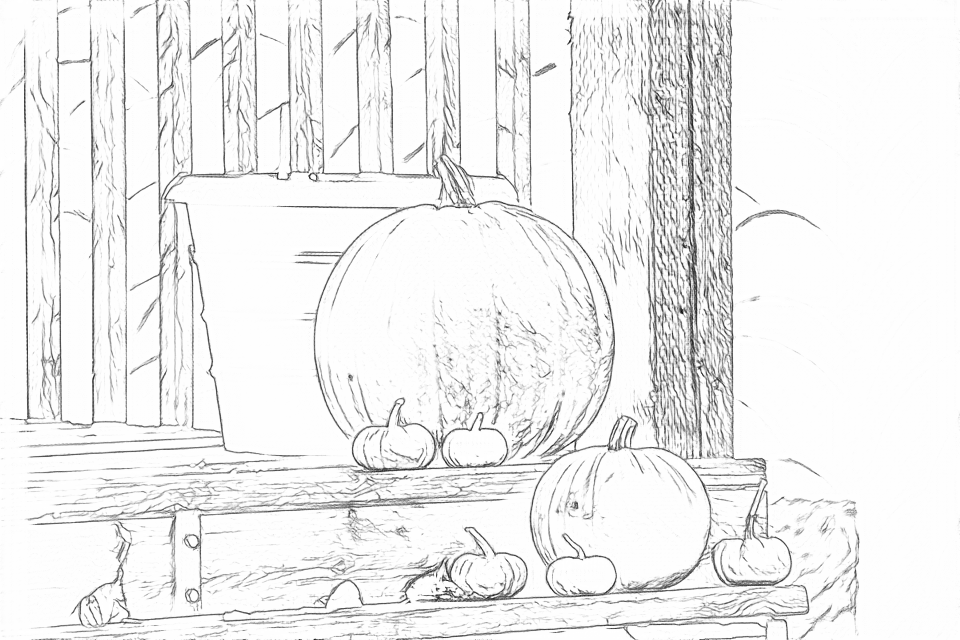
Free: follow the visible edges
AI: simplify the drawing for color
AI can change small features. Compare the drawing with the photo before printing or making a keepsake.
Explore other AI drawing choices
Compare the starting point with two drawing choices from the same photo. Look at the shapes and lines, then use the settings beneath the result you prefer.
Starting point: AI can change small features. Compare the drawing with the photo before printing or making a keepsake.
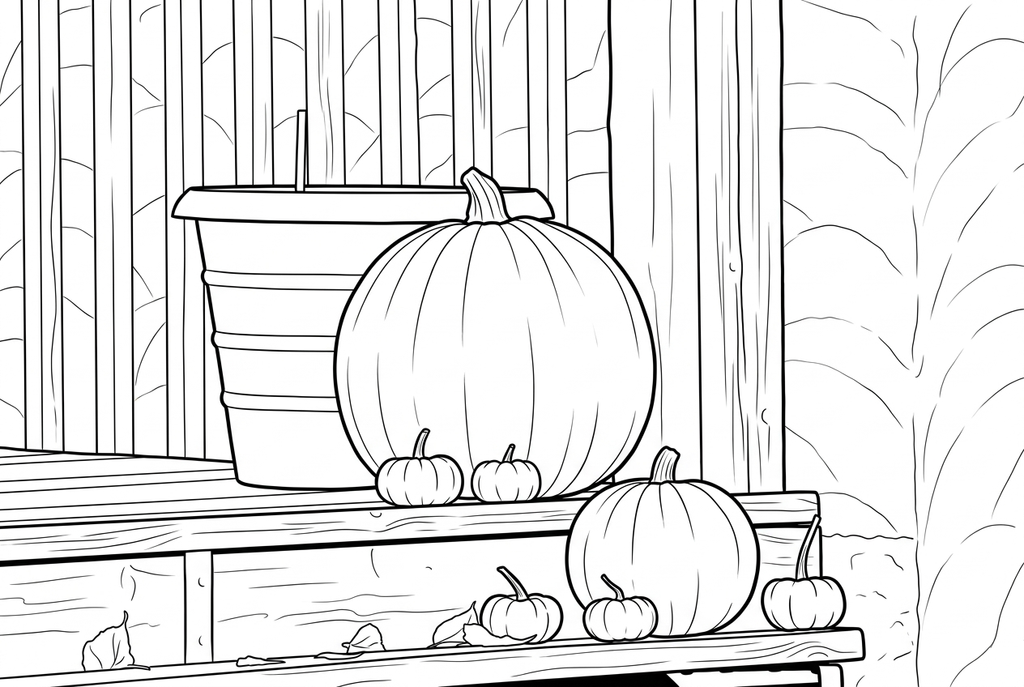
Compare the outlines and smaller details with the result above.
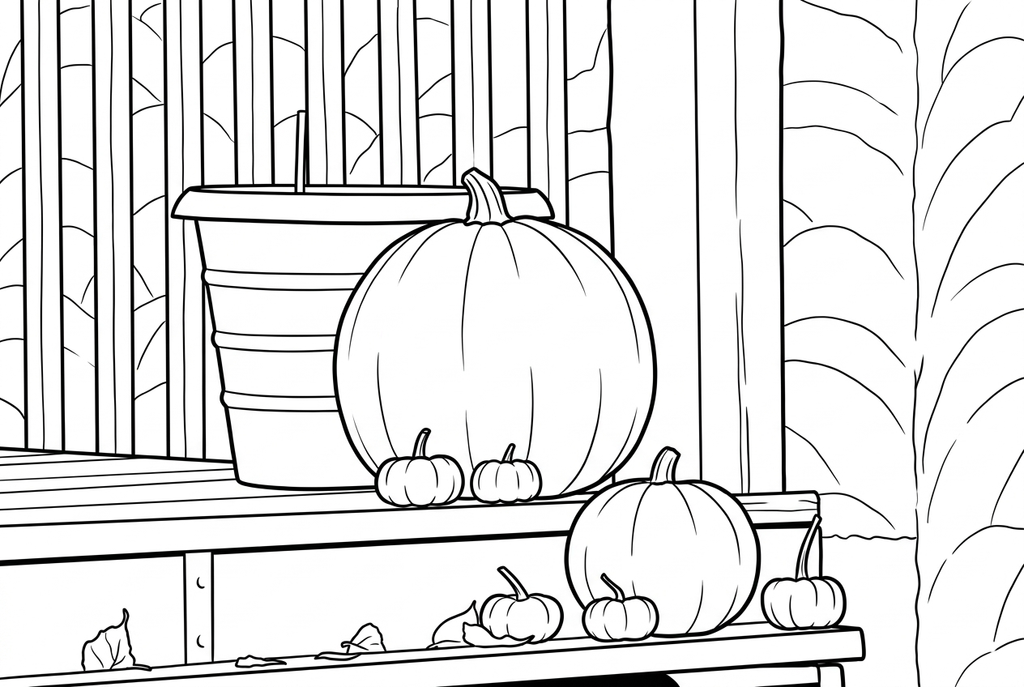
Comic uses heavier pumpkin and step outlines, leaving broad shapes inside the pumpkins. Some wood texture remains and the plant contours change.
See more results from this photo (1)
These are additional real conversions of the same source. Compare their settings and smaller features before choosing a drawing.
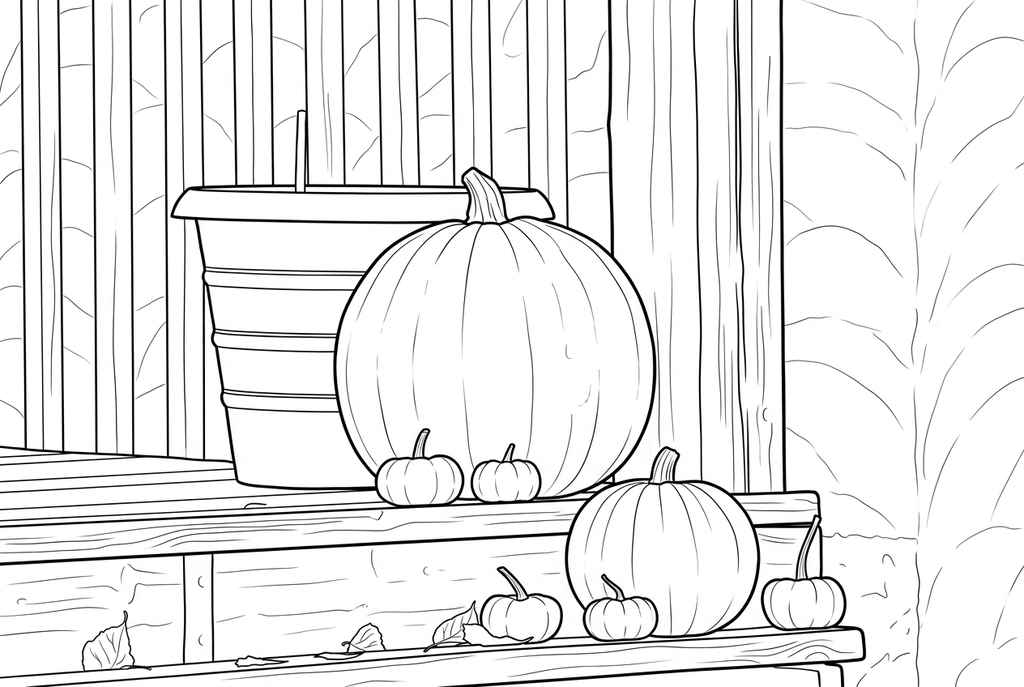
Compare the outlines and smaller details with the result above.
Line art, coloring shapes and pencil sketches
Line art uses lines to describe a subject. Interior marks can show texture or folds without forming closed coloring areas. A coloring page generally favors larger spaces; a pencil sketch may rely on gray shading and tonal transitions.
This workspace produces black-and-white raster drawings with the existing photo conversion controls. It does not offer a separate pencil-shading engine, editable SVG paths or a guaranteed continuous one-line drawing.
How to make line art from a photo with these controls
- Classic
- Detailed
- Standard
- Keep background
Classic with Detailed detail, Standard lines and Keep background is the AI starting point here. Compare Medium if interior marks are too crowded. Bold lines can emphasize contours, but do not turn the image into vector paths.
Choose Keep background when the location belongs in the drawing. Compare Free when following the visible source edges matters more than a redraw. Free stays on your device but can include fine texture and background edges.
Print a reference for observation or tracing
Inspect features against the original, especially eyes, hands, glasses and text. AI can reinterpret them. For tracing practice, choose a drawing with a few readable contours rather than a dense field of tiny marks.
Download a chosen result and check A4 or Letter print preview. The tracing activity below explains how to place tracing paper over a printed reference, secure it and draw by hand. The converter does not score or teach strokes automatically.
Check the drawing before making copies
Inspect the features that matter to this photo and its intended paper use.
Compare facial features or object proportions with the source before treating the line drawing as a reference.
Look for crowded interior texture and broken contours that make tracing or coloring harder.
Print a test copy at the intended size and choose the few contours your activity actually needs.
Keep a result you can use again
Free: keep the file before leaving
Download the PNG or print on A4 or Letter. Conversion runs on your device; refreshing does not retain an unsaved result. Sign in only if you choose to save to My creations.
Free photo conversionAI: return to the finished task
Sign in and submit with the displayed credits. Open the saved result to download, export or print. Review the drawing beside your source before using it for the activity.
AI photo conversionPrint another copy of a selected result without generating again. A new AI submission uses credits. For a PDF from Free, use your browser's print-to-PDF option where available.
A ready-to-print page can work alongside your photo
These free coloring collections offer another picture for the activity, or a starting point when you do not want to use a photo.
Questions about Photo line art
Line art for observation may use more marks than a page made for coloring.
Is line art different from a coloring page?
Line art may keep interior texture and open contours. Coloring is easier with larger, enclosed areas. Compare detail levels for the use you have in mind.
Can I convert a photo to line art for free?
Choose Free in this workspace to get an edge-based PNG on your device, without an account. AI uses the displayed credits and offers redraw settings.
Can I choose thin lines or export an SVG?
The available AI line choices are Standard and Bold; Free has Standard and Slightly thicker. There is no dedicated thin-line control or SVG export.
Will this create a pencil sketch or a single-line portrait?
No dedicated pencil-shading or single-line mode is provided. The output is a black-and-white raster drawing; inspect the example controls and your finished result.
Can I trace the result on paper?
Yes. Print a readable reference, place tracing paper over it and draw by hand. Keep the source photo as a separate observation reference.
Why do some lines fail to enclose a coloring area?
A contour or texture mark can remain open. Inspect the drawing before coloring or tracing; this tool does not guarantee closed vector shapes or automatic fill regions.
Start with the photo you want to color
Line art for observation may use more marks than a page made for coloring.