Turn a Drawing into a Coloring Page
Use a sharp photo or scan of a paper drawing to make a printable page. Compare a free edge-based result with an AI interpretation, and choose the one that preserves the parts you want to color.
- Clean outlines
- Custom styles
- Adjustable detail
Checking your account…

See what your photo can become
My creations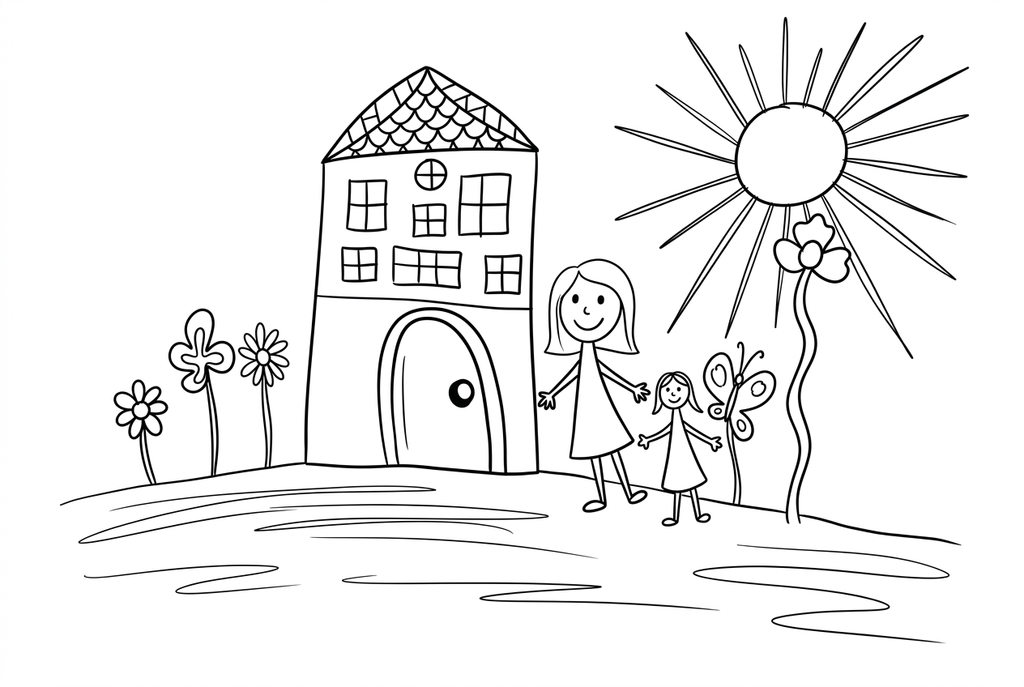
Generating your page
This result is temporary and has not been saved to your account.
Optional: save only the result to your account. Uses storage, not credits.
Match the paper size in your browser’s print dialog.
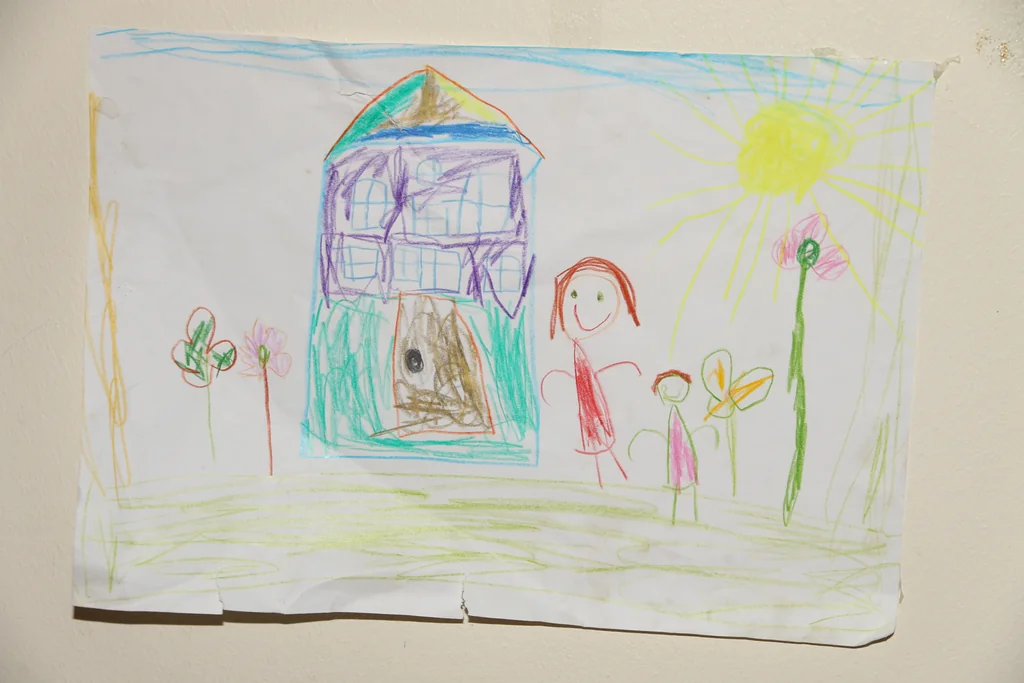
Photo and adapted outlines: Øyvind Holmstad · CC BY-SA 4.0 · License · Adapted
Redraw photo textures as clean outlines, with clearer shapes and open spaces for coloring.
- Compare traced pencil edges with a cleaner AI redraw
- Download a coloring copy while keeping your source artwork
Conversion status
You can leave this page and come back. Your AI task continues in the background.
Make a coloring copy while preserving the original drawing
Choose between following visible strokes and accepting an AI reinterpretation.
Capture the paper flat and clearly
Use a scan or a steady overhead photo, with even light and no hand shadow. Prepare a crop outside the tool if the paper border distracts.
Decide whether the strokes may change
Try Free for the source's visible edges. AI Classic and Medium detail can redraw the image, but may alter a character or remove an intentional mark.
Review the copy before sharing it
Compare important shapes and gaps with the source. Keep the original artwork separately and print the selected copy for different color choices.
Photo tips: Drawings
- Keep the paper flat and the camera parallel to it if photographing.
- Choose lighting that avoids a phone shadow across the drawing.
- Check faint pencil lines in the digital file before conversion.
- Remove unwanted paper borders with another editor before selecting the image.
A paper drawing, ready for another set of colors
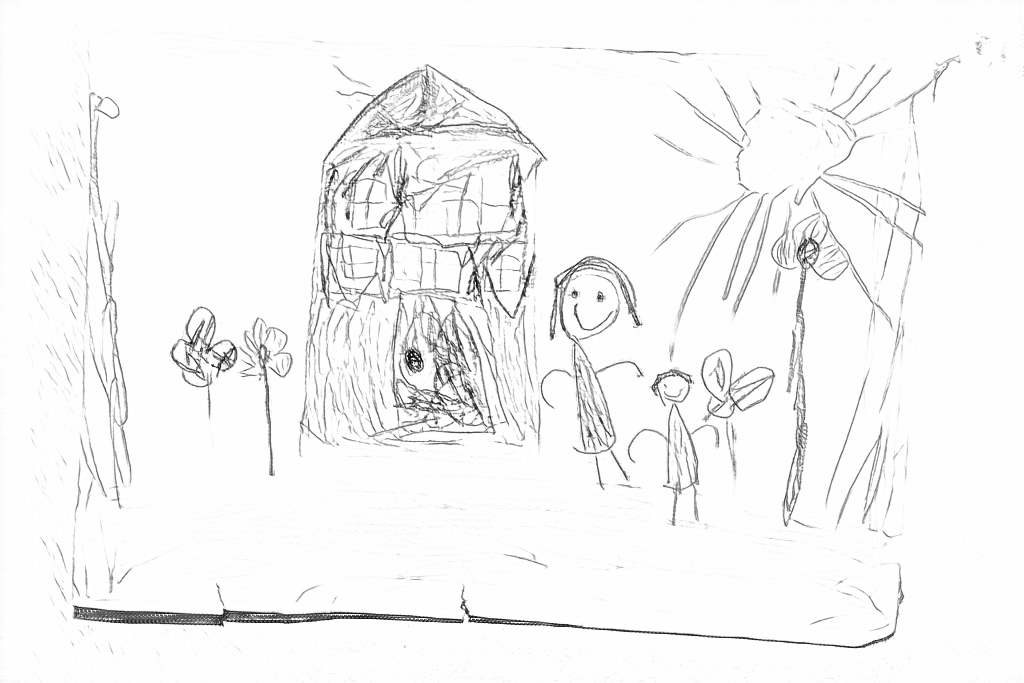
Free follows the original pencil marks and retains paper creases. AI removes the color and paper texture, leaving larger spaces to color.
Free: follow the visible edges
AI: simplify the drawing for color
Compare the windows, flowers and people with the original. AI changes details and turns one flower shape into a butterfly; it is a new interpretation, not an exact trace.
A photograph of paper adds its own edges
Paper texture, shadows and the edge of the sheet can appear alongside the drawing. Free can keep those visible edges, so a cleaner scan or photo helps.
If pencil marks are too faint to see in the source, conversion may miss them. Prepare a clearer digital copy rather than relying on a larger output to restore missing lines.
Tracing the visible image or accepting a redraw
Free processes the image on your device and follows visible edges. AI redraws it, which can change a character, line or composition rather than faithfully cleaning the original.
Start with Classic and Medium detail when trying AI. Inspect the intended shapes before printing, particularly if the drawing belongs to someone whose exact work you want to keep.
Keep the original and make coloring copies
Save the original drawing and its digital file separately. A converted copy can become a coloring activity, but it should not replace the source.
Print a chosen result more than once to compare palettes. This tool creates raster output, not vector paths or an automatic scan-restoration file.
Check the drawing before making copies
Inspect the features that matter to this photo and its intended paper use.
Compare the cleaned drawing with the source so intentional strokes have not disappeared.
Look for paper shadows, ruled lines or erase marks that have become unwanted outlines.
Try coloring the intended shapes on a test print, checking gaps before making multiple copies.
Keep a result you can use again
Free: keep the file before leaving
Download the PNG or print on A4 or Letter. Conversion runs on your device; refreshing does not retain an unsaved result. Sign in only if you choose to save to My creations.
Free photo conversionAI: return to the finished task
Sign in and submit with the displayed credits. Open the saved result to download, export or print. Review the drawing beside your source before using it for the activity.
AI photo conversionPrint another copy of a selected result without generating again. A new AI submission uses credits. For a PDF from Free, use your browser's print-to-PDF option where available.
A ready-to-print page can work alongside your photo
These free coloring collections offer another picture for the activity, or a starting point when you do not want to use a photo.
Questions about Drawings
Choose between following visible strokes and accepting an AI reinterpretation.
Will AI trace my drawing exactly?
No. It can reinterpret the image. Use the original as a reference and compare Free when preserving visible edges matters.
Can it fix all paper shadows?
No dedicated scan-repair tool is provided. A flatter, more evenly lit source can reduce unwanted edges.
Does the output have editable vector lines?
No. The current converter produces a raster coloring image.
What should I do with very faint pencil lines?
Make a clearer scan or photograph with even lighting before converting. A bigger output or AI redraw cannot guarantee the original faint strokes will be recovered faithfully.
Start with the photo you want to color
Choose between following visible strokes and accepting an AI reinterpretation.