
A family moment
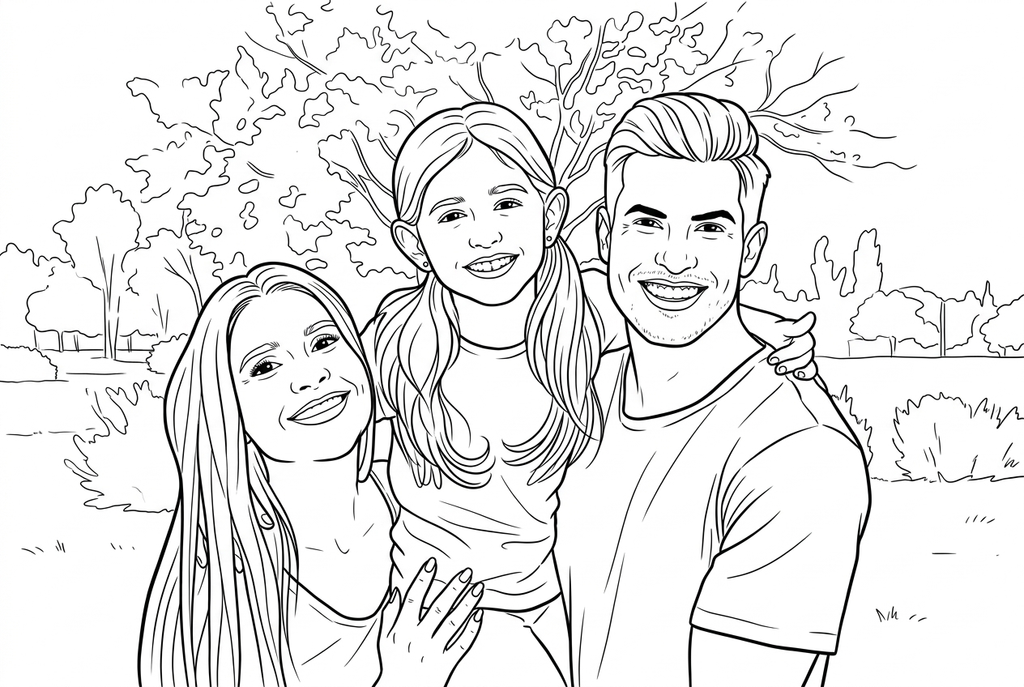
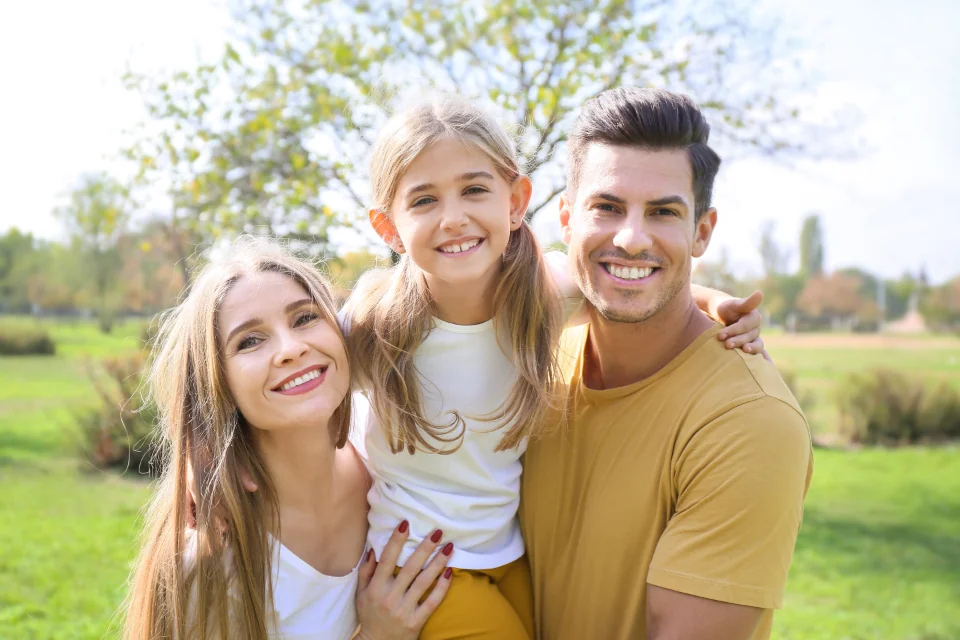
Turn photo textures into clean outlines and clearer shapes to color. Choose from four drawing styles, adjust detail, then download or print.
Checking your account…
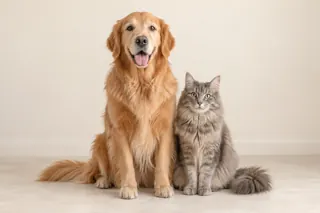
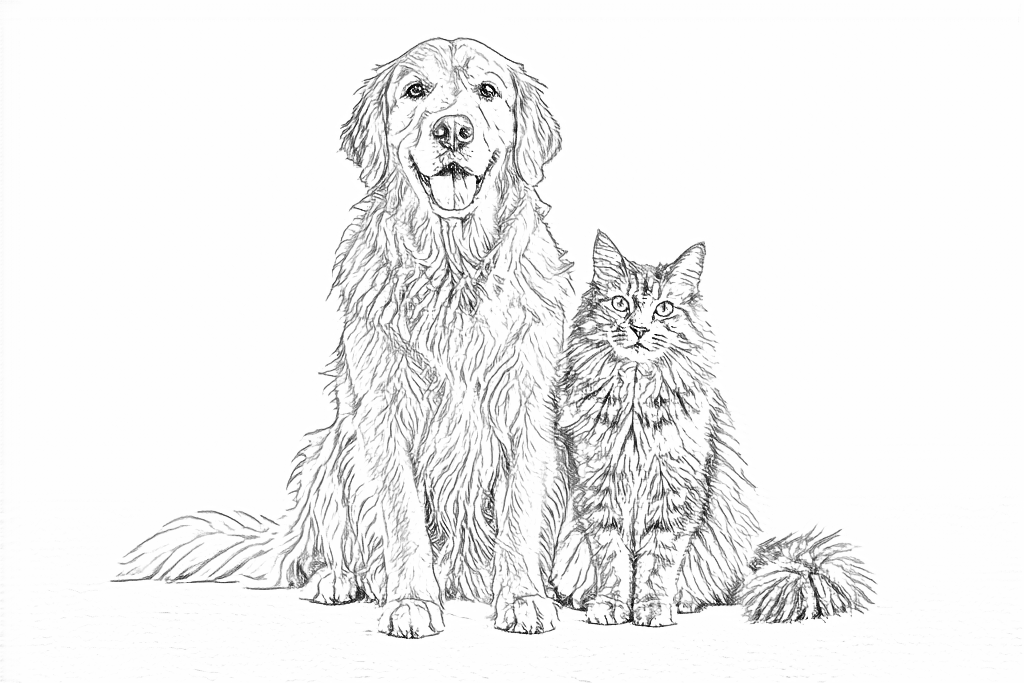
Generating your page
This result is temporary and has not been saved to your account.
Optional: save only the result to your account. Uses storage, not credits.
Match the paper size in your browser’s print dialog.
AI conversion example · Free conversion produces a different result.
Redraw photo textures as clean outlines, with clearer shapes and open spaces for coloring.
You can leave this page and come back. Your AI task continues in the background.
Explore real drawings from family, wedding and flower photos. Each caption shows the settings used.
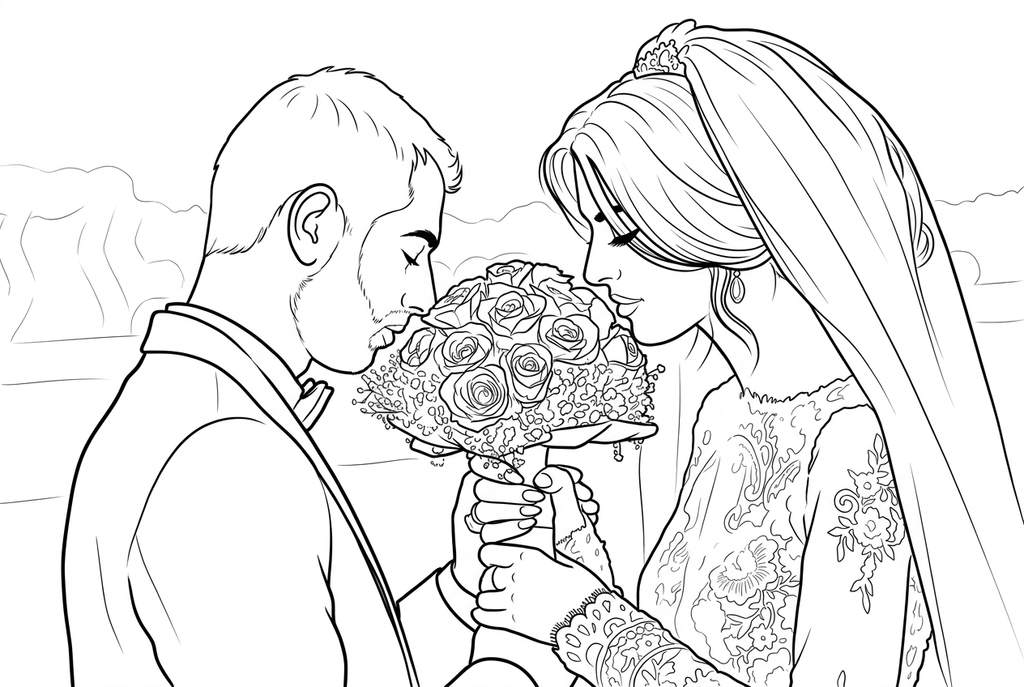
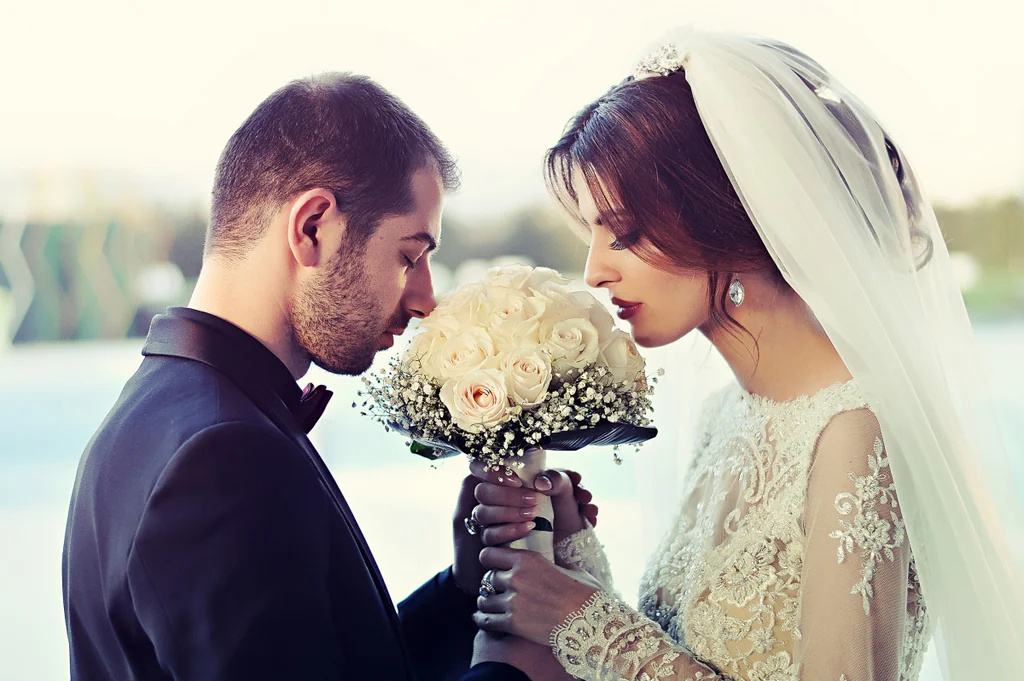
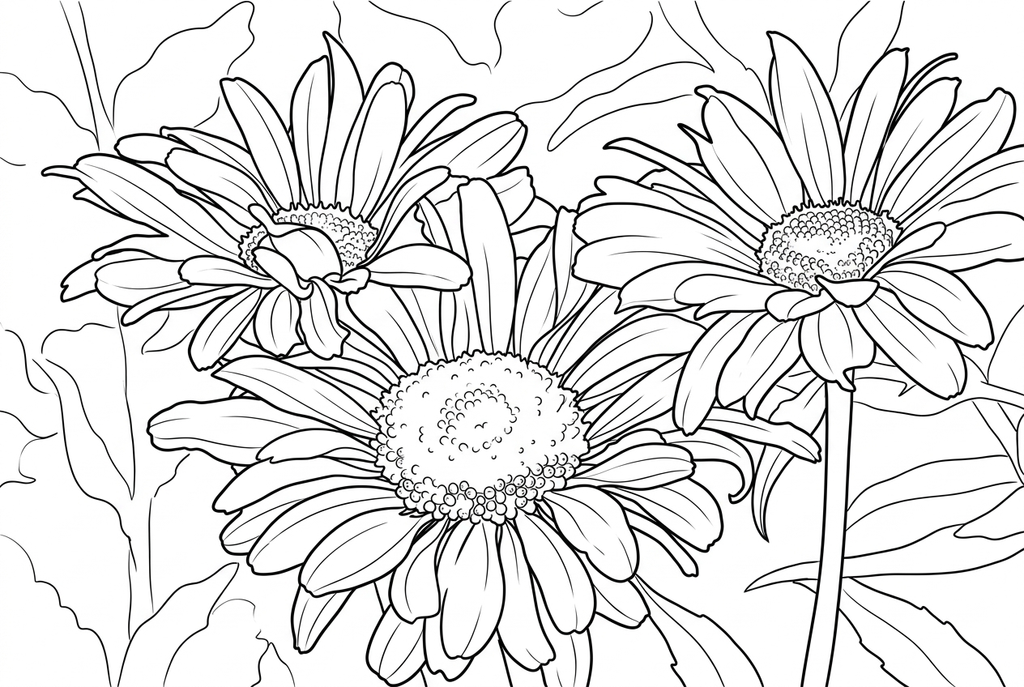
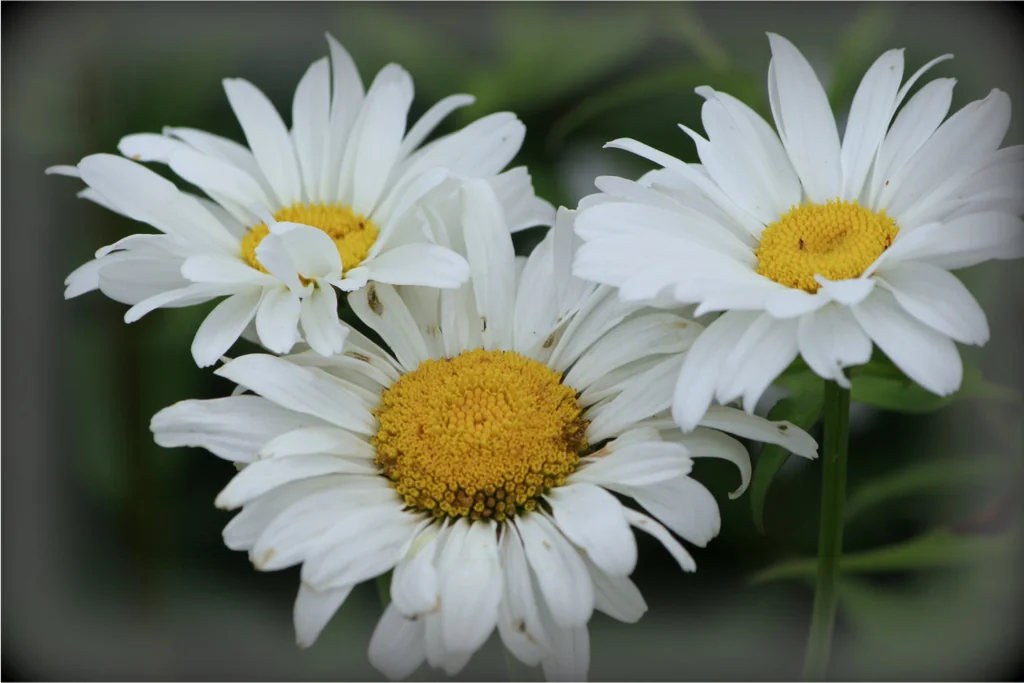
These drawings retain the scene. AI can change small features, so compare your result with the original before printing.
Choose a sharp photo with the whole subject in frame. Faces, petals and important shapes should be large enough to recognize.
A path, a pot or a few leaves can add places to color. Avoid tiny faces, heavy overlap and busy textures that turn into dense lines.
Use your own photo or an image you have permission to adapt. Get permission from people pictured before using their photo.
JPEG, PNG, WebP or HEIC/HEIF, up to 10 MB and 20 megapixels. Animated images are not supported.
Choose the drawing for the activity you have in mind.
Start with a sharp, well-lit picture. Keep faces, paws and other important features large enough to see.
Try a preset or set the drawing style, detail, line weight and background yourself. Compare the real cat-and-dog examples as you change choices.
Sign in, confirm permission and check the displayed credit cost. Open the completed result to download, export or print.
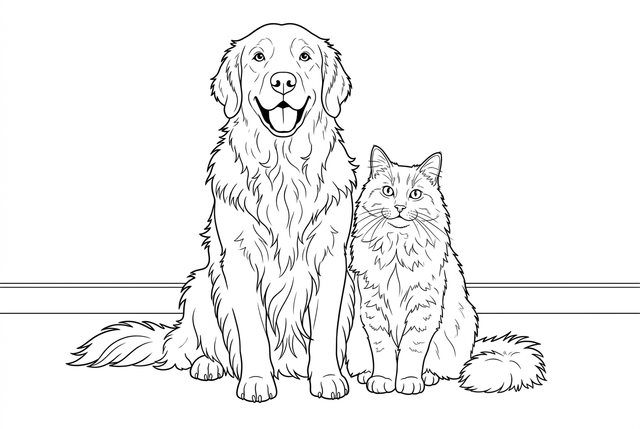
Choose a style, then adjust the detail, lines and background. These are real results from the same cat-and-dog photo.
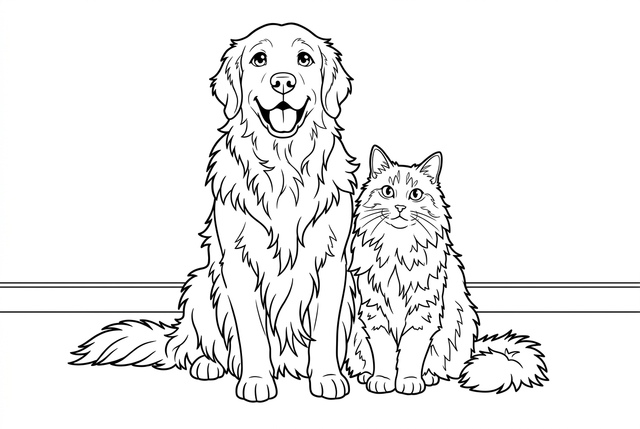
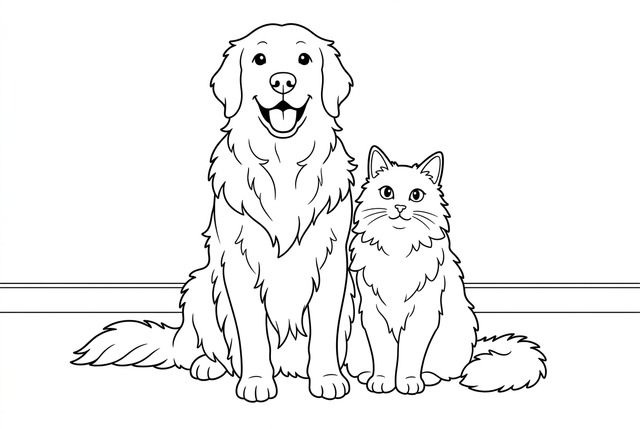
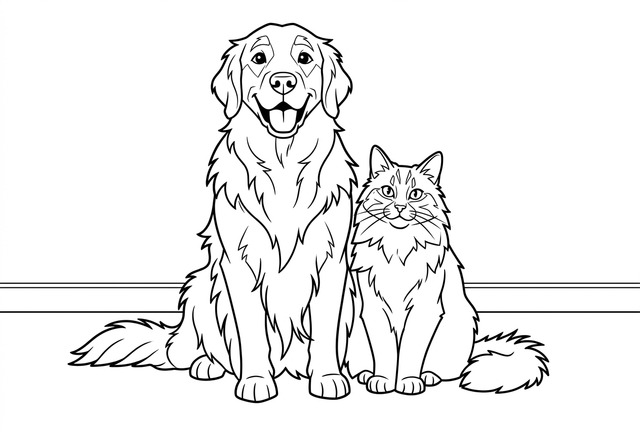
The same Medium detail, Standard lines and Keep background are used for all four styles. AI can change faces and other details; compare your finished drawing with its source.
Drag each slider to compare the original photo with its result. Free follows fine edges and texture; AI turns much of it into larger shapes to color.
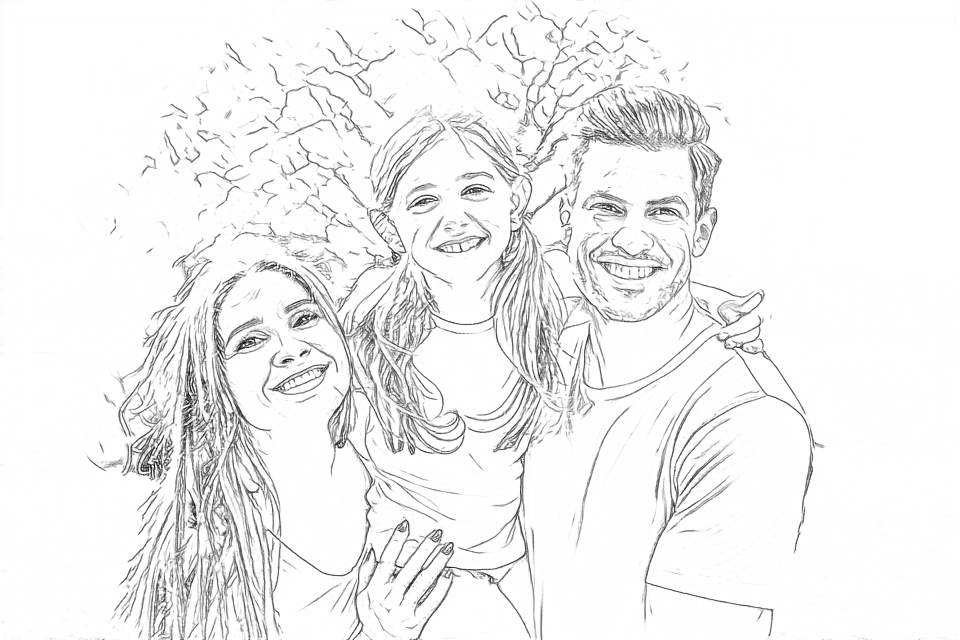
No sign-up, no credits and no photo upload for conversion. Keep the visible contours, including some texture and background lines.
Use free conversionChoose a drawing style, simplify detail and adjust the background. Sign in to generate with the displayed credit amount. Inspect likeness after a redraw.
Use AI conversionCompare results from the same photo. Detail controls the amount of drawing; line weight controls how strong the outlines look.
Each row changes only the named setting. The other settings stay Classic, Medium detail, Standard lines and Keep background.
Simple asks for fewer interior lines and larger coloring areas. Medium balances shapes and detail. Detailed requests more visible features, which can crowd small faces and textures.
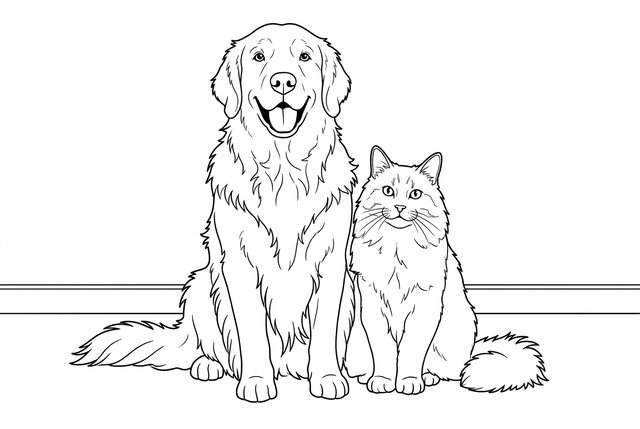
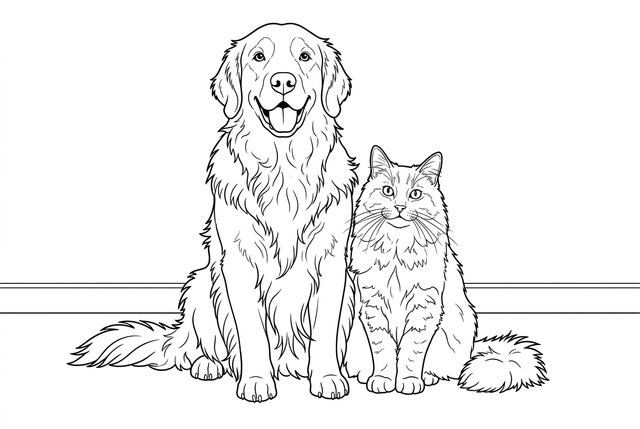
Line weight changes how strong the outlines look, not how many details are drawn. Free conversion offers a small adjustment; AI conversion requests bolder contours and may change the drawing.
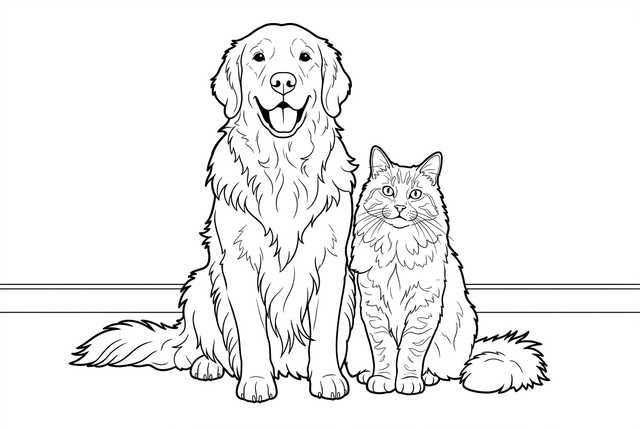
Keep retains the surrounding scene. Simplify asks AI to reduce distractions around the subject; it is not a precise background cutout.
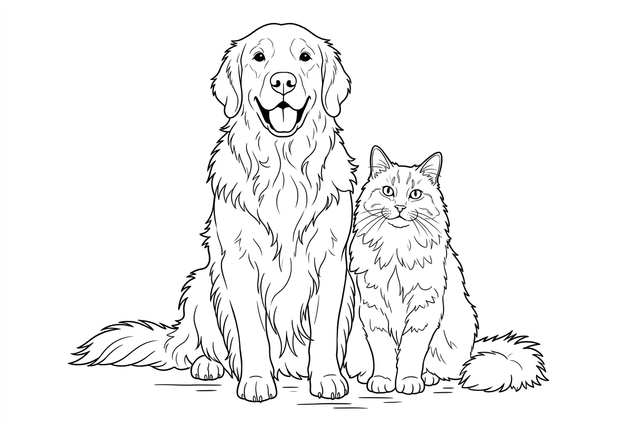
Styles are available with AI conversion. They change how shapes are drawn; they do not add color
A close portrait gives the drawing more to work with than small faces in a wide group shot.
Simplify background helps focus on the subject. Keep background is useful when a place or decoration explains the memory.
Check eyes, hands, collars and markings against the source. A redraw can change them, even in Classic.
Find a photo guide or a paper activity that fits your plans.
Understand the drawing choices, credit cost and what happens while your task is running.
Help with image filesFull photo conversion guideFree follows visible edges on your device. AI redraws the photo with style, detail, line weight and background choices. It can make more open coloring areas or a playful character, but can also change the subject. Compare real results from the same source before choosing.
Classic is a starting point for a photo-based drawing. Anime uses expressive character lines, Kawaii favors rounded characters, and Comic gives a bolder illustrated look. Style affects the interpretation; none promises an exact portrait.
Easy coloring selects Classic, Simple detail and Bold lines. Cute character selects Kawaii with the same simple, bold treatment. Keep the scene selects Classic, Medium detail and Standard lines. All three keep the background; you can adjust each choice afterward.
The cat-and-dog examples cover all 48 current combinations of the four styles, three detail levels, two line weights and two background choices. They show that source photo under the selected settings. Your own photo is processed only when you generate.
An AI redraw can alter expressions, proportions, small features, lettering and coat patterns. Use a clear source, start with Classic and inspect the finished drawing against the photo before printing a keepsake.
It asks for less background detail, rather than a guaranteed cutout or transparent background. Keep background asks to retain the setting. Inspect the finished drawing to see what was kept or changed.
No. Selecting settings and viewing the existing examples uses no credits. Submitting a new AI generation uses the amount shown beside Generate. All current style and detail choices have the same displayed generation cost.
Sign in to generate. A file chosen on this device stays in this browser until you submit it. AI generation uploads it for processing and keeps the task and result private to your account. Use only photos you have permission to use.
The task runs separately from the open page. The current generation window is up to three minutes; a task that does not finish is marked as failed rather than left running indefinitely. Check its status before starting another generation.
Once submission has created a task, you can return through Your conversion tasks or its result page while signed in. Refreshing checks the existing task; it does not submit another generation. A photo selected but not yet submitted is not kept across refreshes.
Choose a JPEG, PNG, WebP or HEIC/HEIF still photo up to 10 MB and 20 megapixels. HEIC/HEIF is decoded on your device into a JPEG copy before upload; animated images are not supported. Choose from your phone is available in AI after signing in.
Use Classic and compare Medium or Detailed settings for more interior lines. Simple and Bold can emphasize larger shapes. The line art and outline guides explain these choices and Free edge tracing; output is a raster image, not a vector drawing or guaranteed single continuous line.
Open the completed result to use its download, export and print controls. Choose A4 or Letter and check fit and margins. Extra copies of that result do not need another generation.
The current converter handles one photo per submission. Storybooks, batch conversion and coloring-book assembly are not available here yet. You can print individual finished pages and arrange them yourself.
Choose the look, inspect the drawing and bring it to paper.