
Turn Landscape Photos into Coloring Pages
Make a printable drawing of a place, with a horizon and large shapes you can color. Keep the setting when it is the reason you chose the photo, then check how much small texture belongs in the page.
- Clean outlines
- Custom styles
- Adjustable detail
Checking your account…

See what your photo can become
My creations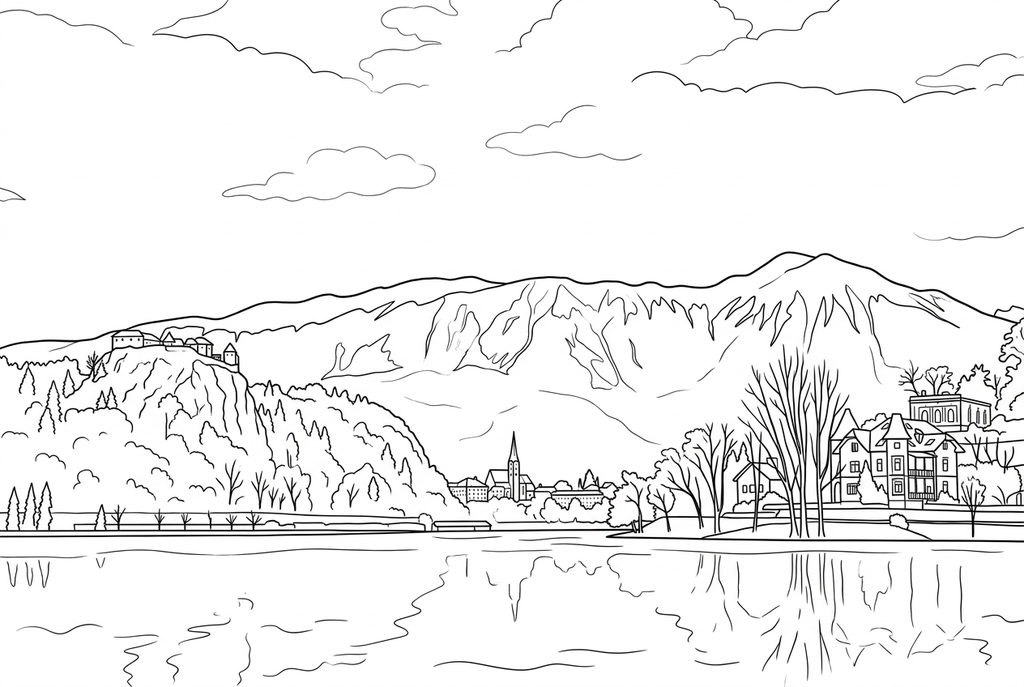
Generating your page
This result is temporary and has not been saved to your account.
Optional: save only the result to your account. Uses storage, not credits.
Match the paper size in your browser’s print dialog.
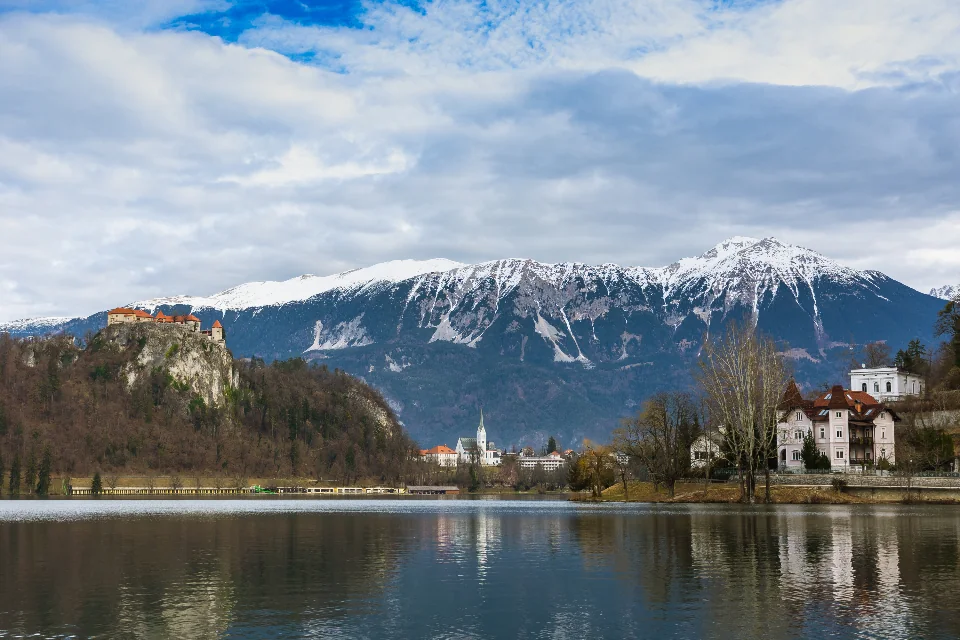
Photo: Marko Tabak · CC0 1.0 · License
Redraw photo textures as clean outlines, with clearer shapes and open spaces for coloring.
- Keep the place and its large landscape shapes
- Adjust small textures before printing
Conversion status
You can leave this page and come back. Your AI task continues in the background.
Keep the place, choose how much texture to draw
For a landscape, the setting often is the subject.
Find the scene's large shapes
Choose a visible horizon, hill, lake edge or landmark. Check that the picture still reads when color becomes black-and-white outlines.
Start with the background kept
Try AI Classic, Medium detail and Keep background. Reduce detail if foliage crowds the scene; Free may retain many water and grass edges.
Make a travel page with a real note
Compare the horizon and landmarks with the photo. Test the postcard or journal print size, then add the place and a remembered detail by hand.
Photo tips: Landscape photos
- Look for large shapes such as a hill, a lake edge or a group of trees.
- Keep a clear horizon if it helps the scene feel recognizable.
- Compare the amount of grass, leaf and rock texture in the foreground.
- Choose a place photo that still makes sense when small color differences become outlines.
Keep the layers of a landscape
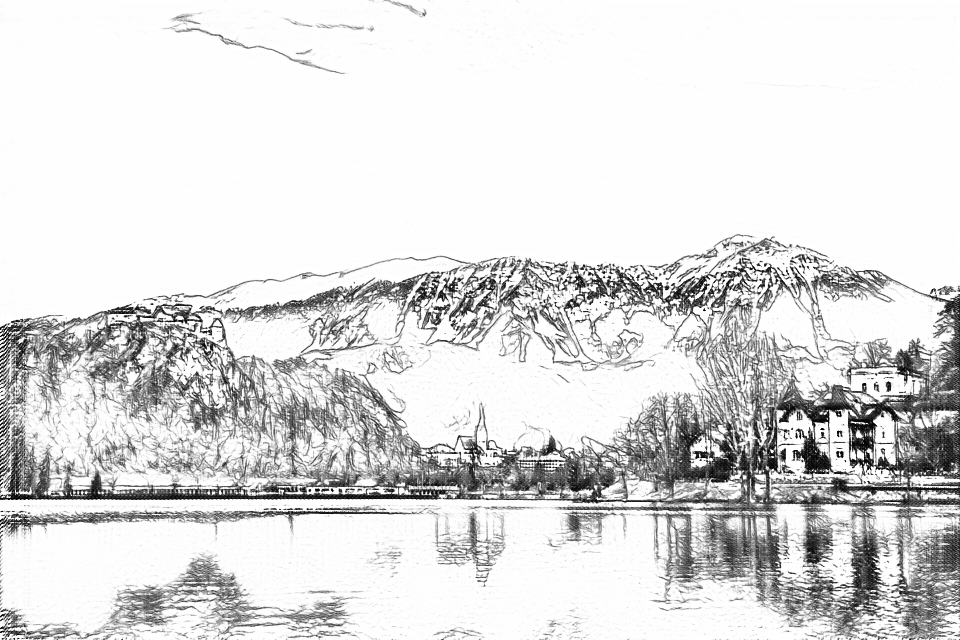
The lake, mountain ridges and buildings remain the subjects of both drawings. AI organizes the scene into stronger contours and larger areas to color.
Free: follow the visible edges
AI: simplify the drawing for color
AI can change small features. Compare the drawing with the photo before printing or making a keepsake.
Explore other AI drawing choices
Compare the starting point with two drawing choices from the same photo. Look at the shapes and lines, then use the settings beneath the result you prefer.
Starting point: AI can change small features. Compare the drawing with the photo before printing or making a keepsake.
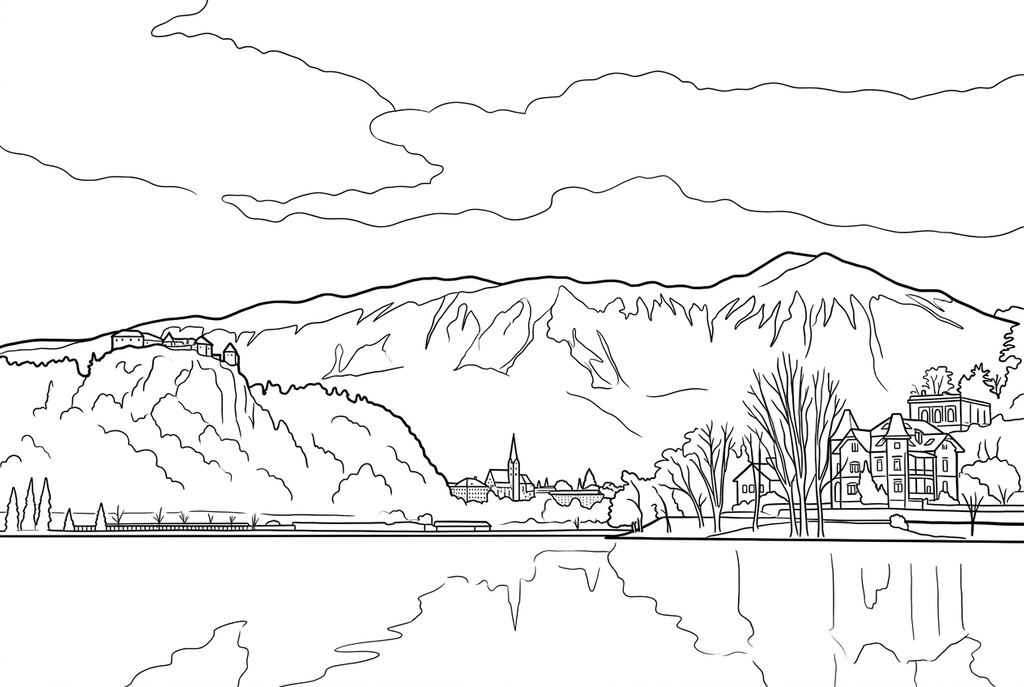
Simple leaves fewer reflection marks and larger cloud areas. The lines in this real output remain fine despite the Bold setting; inspect them at your intended print size.
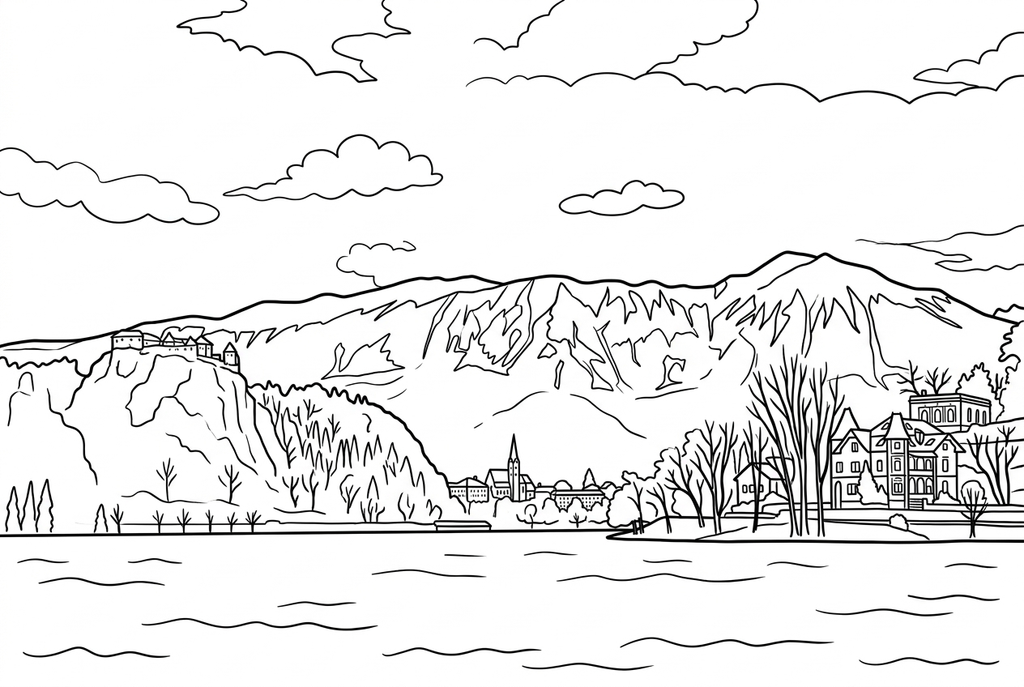
This Comic result has clearer mountain contours and fewer water-reflection marks. Buildings and cloud shapes can change; use the photo as your reference.
Keep the place, simplify the texture
- Classic
- Medium
- Standard
- Keep background
For AI, begin with Classic, Medium detail and Keep background when the scene itself matters. Simple can help broad shapes stay open; Detailed may introduce many small lines in trees or rocks.
Simplify is a different choice when a specific building or object should dominate. It may change the setting, so compare that result with the memory you want to keep.
Light, water and clouds may not become neat shapes
A photograph can show a sunset or reflection mainly through color. Free depends on visible edges and may produce faint or busy marks in those areas.
AI can reinterpret water and sky as drawable shapes. Inspect the horizon, paths and major landmarks rather than expecting an exact record of every cloud.
Make a travel page with a real note
Add a place name and one remembered detail by hand after printing. A travel postcard uses a mounted panel with a note on the reverse, while a field-trip reflection uses space for observations.
For a nature journal, keep the original as the record of what you saw. The converted page can support coloring without becoming the factual evidence.
Check the drawing before making copies
Inspect the features that matter to this photo and its intended paper use.
Check that the main landmarks, horizon and scene arrangement still tell the intended travel memory.
Inspect tree branches, distant buildings and water texture for tightly packed marks.
Print at the planned journal or postcard size and check that small landscape features remain colorable.
Keep a result you can use again
Free: keep the file before leaving
Download the PNG or print on A4 or Letter. Conversion runs on your device; refreshing does not retain an unsaved result. Sign in only if you choose to save to My creations.
Free photo conversionAI: return to the finished task
Sign in and submit with the displayed credits. Open the saved result to download, export or print. Review the drawing beside your source before using it for the activity.
AI photo conversionPrint another copy of a selected result without generating again. A new AI submission uses credits. For a PDF from Free, use your browser's print-to-PDF option where available.
A ready-to-print page can work alongside your photo
These free coloring collections offer another picture for the activity, or a starting point when you do not want to use a photo.
Questions about Landscape photos
For a landscape, the setting often is the subject.
Should I use Simplify background for a landscape?
Often the background is the subject. Start with Keep when you want the setting, then compare a simpler result if texture becomes crowded.
Why does water look busy in Free?
Ripples and reflections create many visible edges. Try a calmer scene or a source with clearer large shapes.
Will the drawing preserve the exact route or terrain?
No. It is a coloring picture, not a map or survey. Use the original photo for factual details.
Will a sunset photo work when most of its detail is color?
You can try it, but gradual sky colors may not make clear boundaries in Free. AI can reinterpret them into lines; judge the large scene shapes and keep the original as the record.
Start with the photo you want to color
For a landscape, the setting often is the subject.