
Turn Wildlife Photos into Coloring Pages
Use a wildlife photo you already have to make a printable drawing for a nature activity. Choose a clear animal shape, then compare the result with the original before using it for observation.
- Clean outlines
- Custom styles
- Adjustable detail
Checking your account…

See what your photo can become
My creations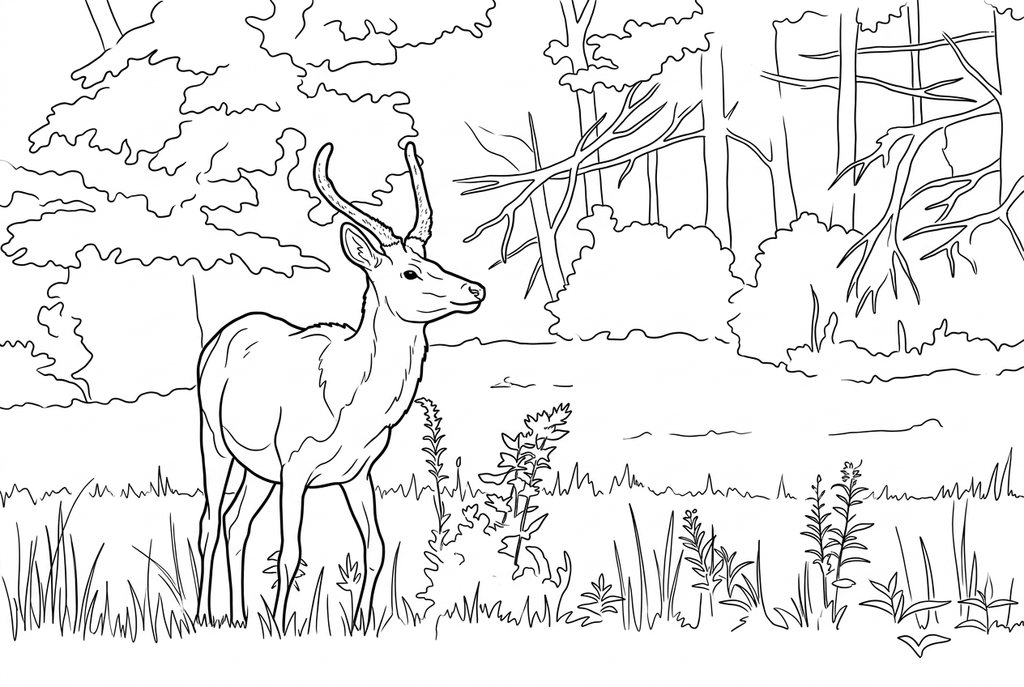
Generating your page
This result is temporary and has not been saved to your account.
Optional: save only the result to your account. Uses storage, not credits.
Match the paper size in your browser’s print dialog.
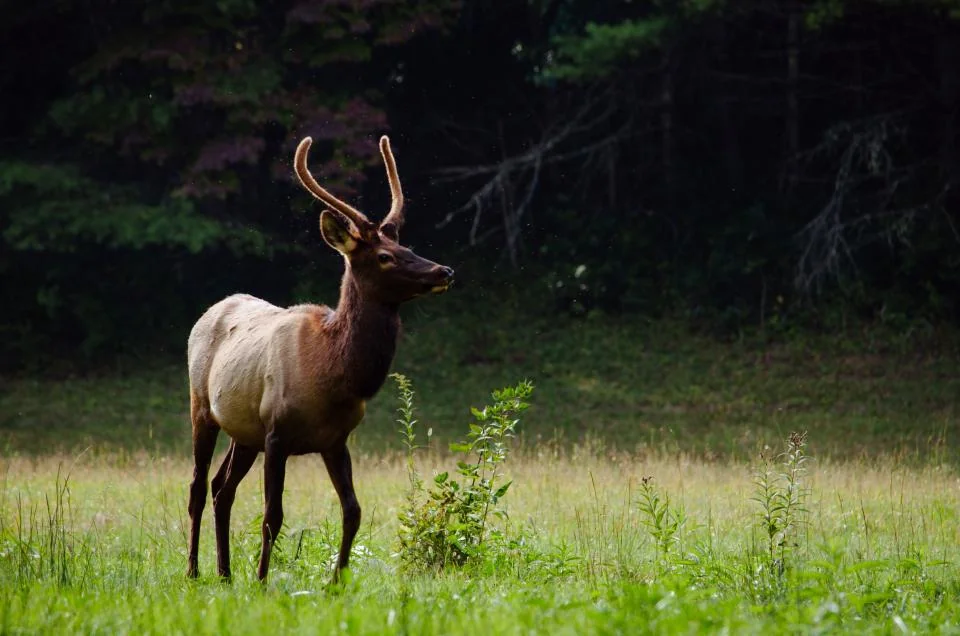
Photo: Jordan Whitt · CC0 1.0 · License
Redraw photo textures as clean outlines, with clearer shapes and open spaces for coloring.
- Choose how much coat detail to include
- Keep the animal in its habitat
- Print a drawing beside your observation notes
Conversion status
You can leave this page and come back. Your AI task continues in the background.
Put a clear wildlife subject at the center of the page
Keep identification and factual observations tied to the original photograph.
Choose a visible animal silhouette
Use an existing clear frame where the animal fills enough of the picture. Avoid grass, fencing or branches that hide its legs and body.
Pick detail for the activity
Try Classic and Medium detail for AI, or compare Free for visible source edges. Choose fewer small marks for coloring rather than expecting more detail to prove anatomy.
Verify markings before adding notes
Compare the silhouette, feet and visible patches with the original. Print the chosen page and add only observations you can check in the source.
Photo tips: Wildlife photos
- Prefer an animal that occupies a useful part of the frame instead of a tiny distant subject.
- Check whether grass, branches or a fence hide the legs and body outline.
- Look for spots, stripes or other visible features that you intend to discuss.
- Select a still, clear photograph from your existing pictures; use the dedicated bird page for beaks, feet and feathers.
Choose the animal or the whole scene
The Keep result retains the animal and wooded setting. The Simplify result focuses more on the animal; compare the legs and horns in both.
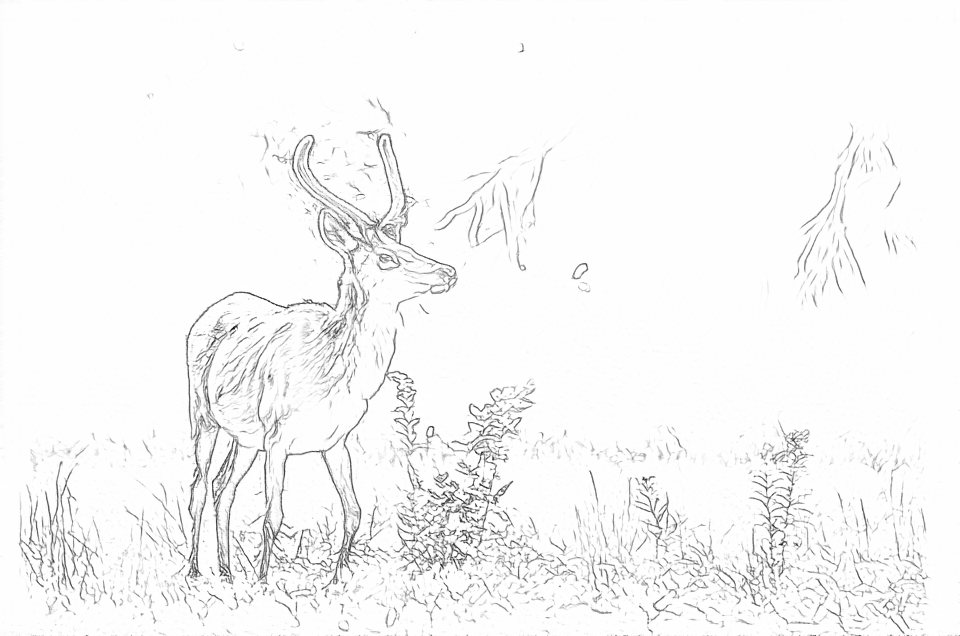
Free: follow the visible edges
AI: simplify the drawing for color
AI can change small features. Compare the drawing with the photo before printing or making a keepsake.
Explore other AI drawing choices
Compare the starting point with two drawing choices from the same photo. Look at the shapes and lines, then use the settings beneath the result you prefer.
Starting point: AI can change small features. Compare the drawing with the photo before printing or making a keepsake.
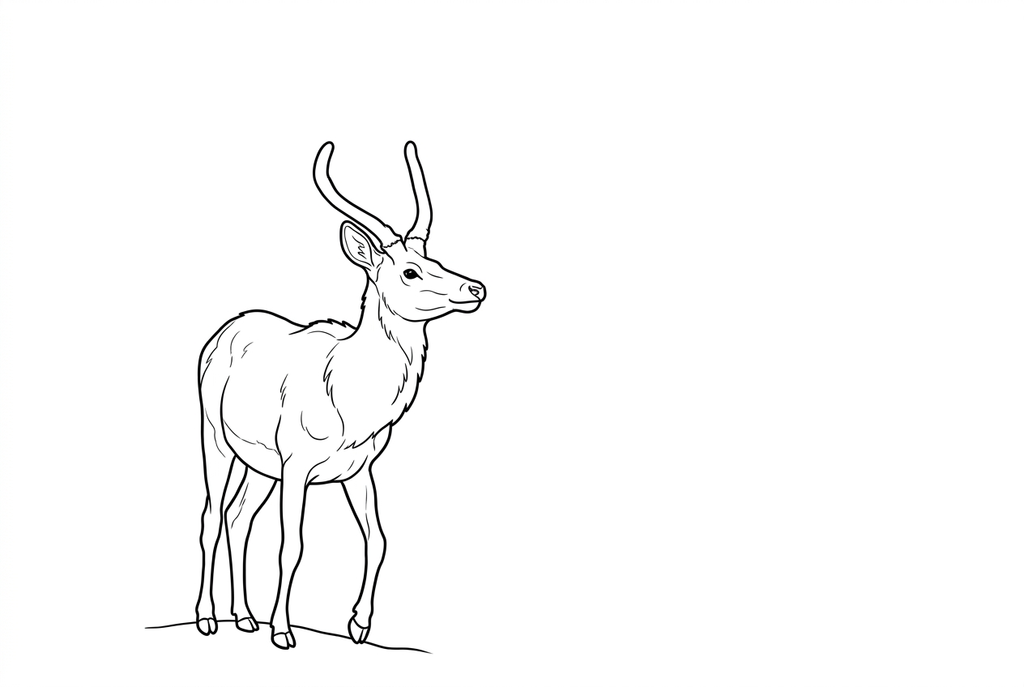
The drawing focuses on the animal rather than the trees behind it.
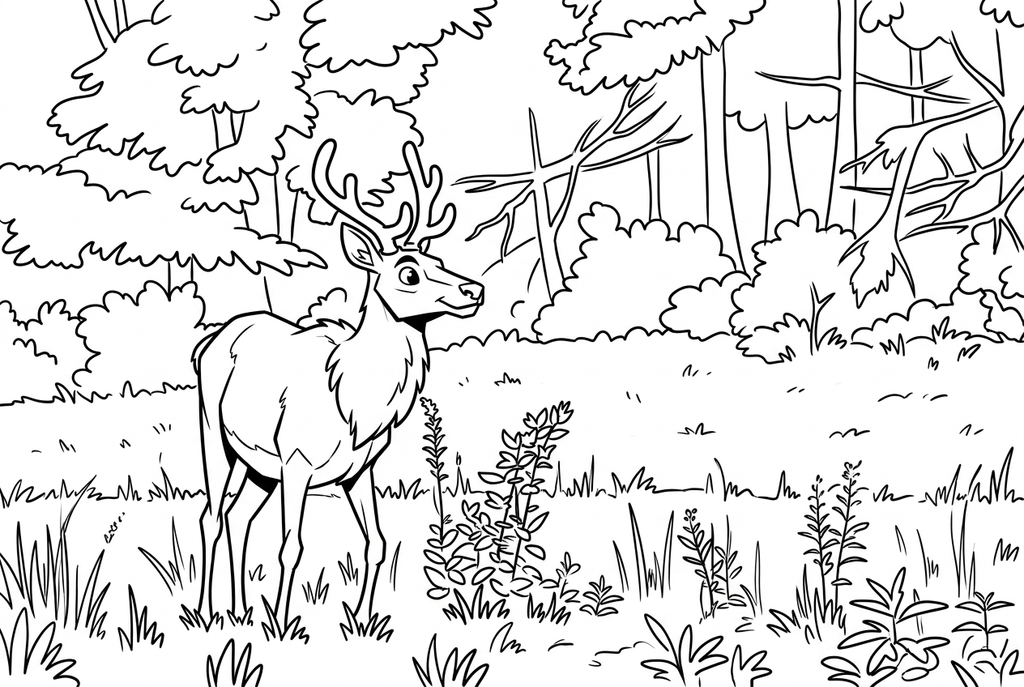
Comic gives the coat and woodland a graphic outline. It also changes the horn shapes; use the original when those features matter.
A distant animal cannot gain missing detail
A large output does not create a clear face from a tiny subject. Choose a nearer-looking frame or prepare a crop outside this tool, checking that it still has enough visible detail.
Free traces photo edges, so grass and fencing can compete with the body. AI may simplify the scene, but it can also change a paw, horn or stripe.
Choose detail for coloring or observation
- Classic
- Medium
- Standard
- Keep background
Start with Classic and Medium detail for an AI page. Simple can suit a broad silhouette; more detail may help represent visible patterns but also increases small spaces.
For an observation task, keep the original photo beside the drawing. Record only what you can verify there rather than treating the AI result as an anatomical reference.
Turn a photograph into a journal page
Print a result and add the date and your own observation on a separate sheet or in the margin. A few checked features are more useful than a long description of details the drawing invented.
The nature journal activity links conversion with a real photo record. Use the animal's name only when you know it; the converter does not identify species.
Check the drawing before making copies
Inspect the features that matter to this photo and its intended paper use.
Check the animal silhouette, legs and distinguishing visible markings against the photograph.
Look for vegetation or background edges that merge into the animal outline.
Use the original photo for identification; an AI redraw can change markings even when the result looks convincing.
Keep a result you can use again
Free: keep the file before leaving
Download the PNG or print on A4 or Letter. Conversion runs on your device; refreshing does not retain an unsaved result. Sign in only if you choose to save to My creations.
Free photo conversionAI: return to the finished task
Sign in and submit with the displayed credits. Open the saved result to download, export or print. Review the drawing beside your source before using it for the activity.
AI photo conversionPrint another copy of a selected result without generating again. A new AI submission uses credits. For a PDF from Free, use your browser's print-to-PDF option where available.
A ready-to-print page can work alongside your photo
These free coloring collections offer another picture for the activity, or a starting point when you do not want to use a photo.
Questions about Wildlife photos
Keep identification and factual observations tied to the original photograph.
Can it identify the animal?
No. This tool creates a coloring drawing. Verify species separately if identification matters to your activity.
Why did the fence become part of the animal?
Overlapping edges in the photo can merge during conversion. A less obstructed photo is usually a better starting point.
Can I use a photo taken through glass?
You can try it, but reflections can add misleading lines. Choose the frame with the clearest animal and fewest reflections.
Should the animal's habitat stay in the drawing?
Keep background when the setting is part of the activity. If vegetation hides the animal, a cleaner photograph may help more than changing settings after conversion.
Start with the photo you want to color
Keep identification and factual observations tied to the original photograph.