
Turn a House Photo into a Coloring Page
Make a coloring drawing of a house or familiar building. Choose a readable front or side view, then inspect the roof, doors and windows before using the result in a card or paper map.
- Clean outlines
- Custom styles
- Adjustable detail
Checking your account…

See what your photo can become
My creations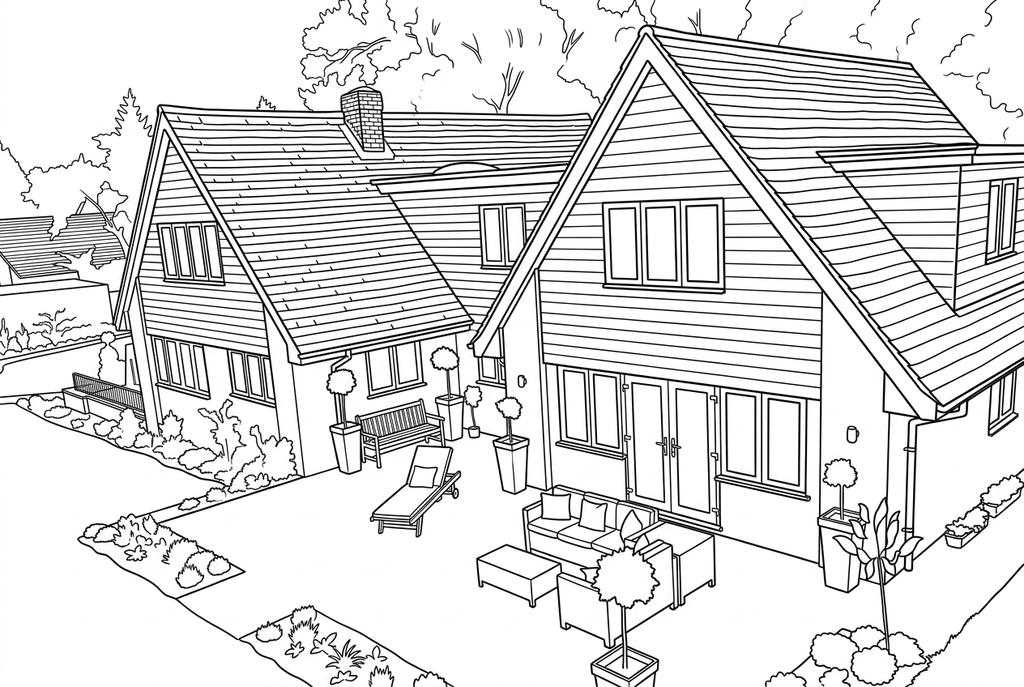
Generating your page
This result is temporary and has not been saved to your account.
Optional: save only the result to your account. Uses storage, not credits.
Match the paper size in your browser’s print dialog.
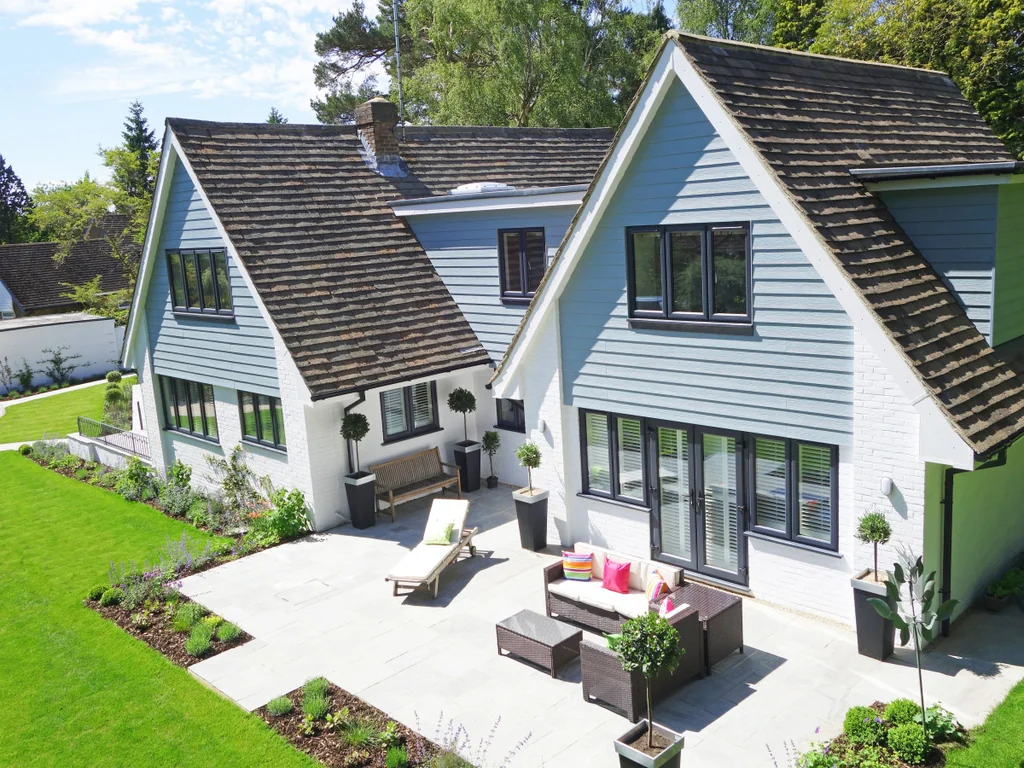
Photo: PxHere · CC0 1.0 · License
Redraw photo textures as clean outlines, with clearer shapes and open spaces for coloring.
- Keep the facade and surrounding street scene
- Choose detail for roofs, doors and windows
- Download a drawing for a card or paper map
Conversion status
You can leave this page and come back. Your AI task continues in the background.
Choose the building features that make the place familiar
A closer facade and a street scene serve different paper tasks.
Frame the roof, door and main windows
Use a facade for a house portrait or leave surroundings for a street scene. Check reflections and obstructions in front of the entrance.
Keep the setting when it explains the place
Try Classic, Medium detail and Keep background for AI. Compare Simplify for a standalone building; Free follows visible roof and window edges too.
Review geometry before using the picture
Check the entrance, roof and window arrangement against the source. Print a gift panel or map landmark, and add labels separately by hand.
Photo tips: House photos
- Choose an angle where the main wall and roof edges are clear.
- Check whether trees, parked cars or fences hide the building.
- Consider house numbers, signs and other information visible in the photo before selecting it.
- If you want less foreground, prepare a crop outside ColorWillow.
See the house as shapes and lines
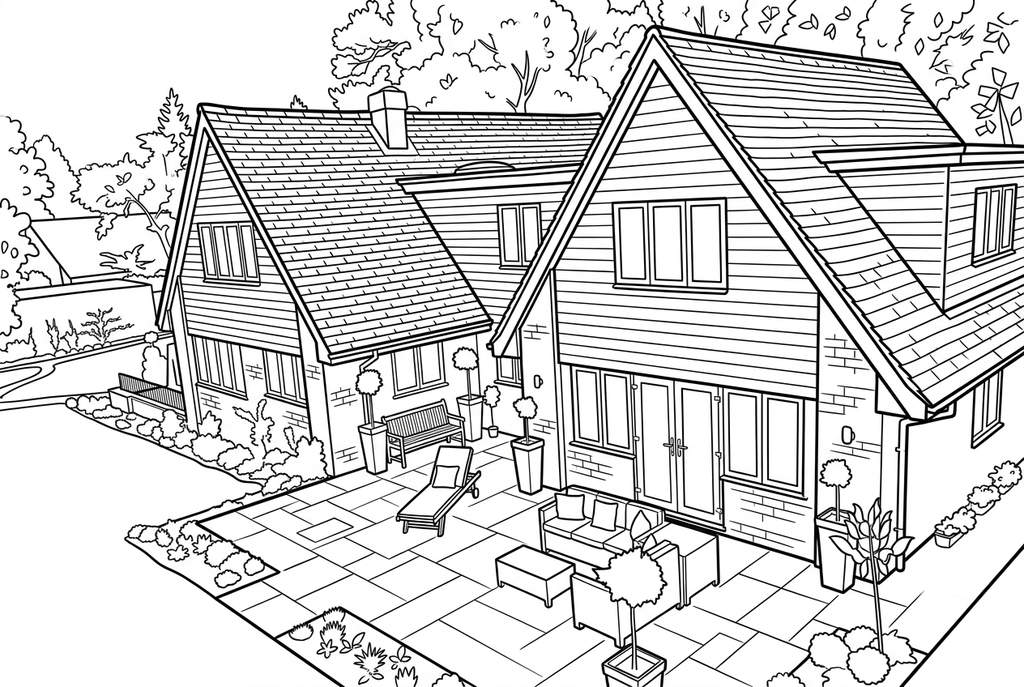
Free follows masonry, plants and window edges. AI redraws the facade and courtyard with clearer shapes; small architectural details can change.
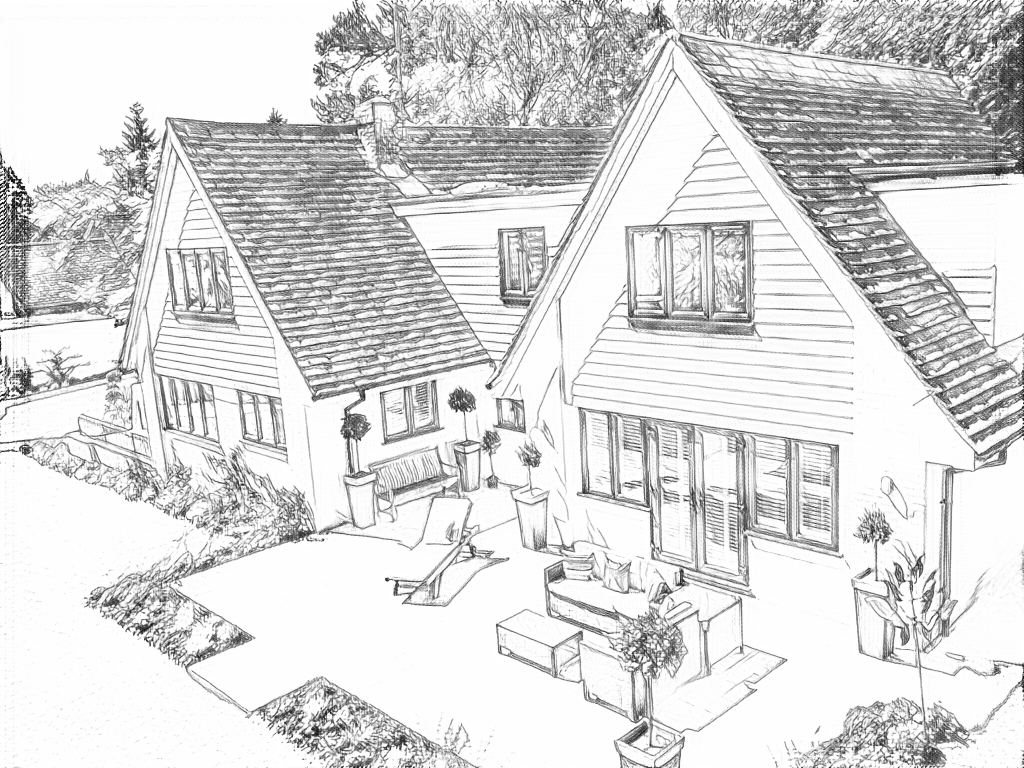
Free: follow the visible edges
AI: simplify the drawing for color
AI can change small features. Compare the drawing with the photo before printing or making a keepsake.
Explore other AI drawing choices
Compare the starting point with two drawing choices from the same photo. Look at the shapes and lines, then use the settings beneath the result you prefer.
Starting point: AI can change small features. Compare the drawing with the photo before printing or making a keepsake.
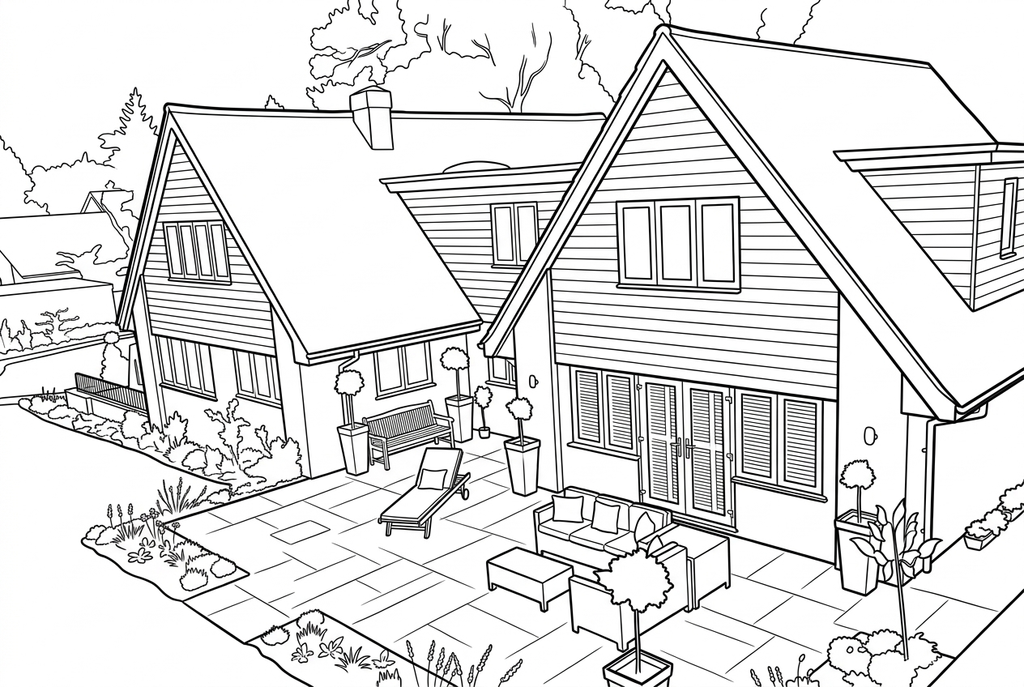
Simple and Bold work together here: roof texture is reduced and outer contours are heavier. Windows and garden shapes still need checking against the photo.
Comic outlines the house with stronger edges and many brick, roof and plant marks. Compare this fuller drawing with the simpler roof in the other choice.
A facade and a street scene serve different tasks
A closer facade gives room for doors and windows. A street view includes neighboring buildings and paths, which may be useful for a scene but gives the main house less space.
Start with Classic, Medium detail and Keep background for AI when the surroundings matter. If the house should stand alone, compare Simplify and inspect which nearby shapes remain.
Windows, perspective and reflections
Free can follow clear roof and window edges, but reflections may add lines inside the glass. AI can redraw geometry and change the number or arrangement of windows.
Compare the distinctive door, roof shape and large openings with the original. This page is for coloring; it does not produce accurate architectural plans.
A familiar place for a gift or paper map
A house drawing can be mounted on a handmade greeting card. A public building photo can become one landmark on a neighborhood map arranged by hand.
Write names or labels after printing. The tool does not automatically remove an address or add a precise map location.
Check the drawing before making copies
Inspect the features that matter to this photo and its intended paper use.
Compare the roof, entrance and main windows with the building in your source.
Check fences, brickwork and plants for extra lines that hide the building silhouette.
Test the map-panel print size and add any necessary address or place label yourself after reviewing it.
Keep a result you can use again
Free: keep the file before leaving
Download the PNG or print on A4 or Letter. Conversion runs on your device; refreshing does not retain an unsaved result. Sign in only if you choose to save to My creations.
Free photo conversionAI: return to the finished task
Sign in and submit with the displayed credits. Open the saved result to download, export or print. Review the drawing beside your source before using it for the activity.
AI photo conversionPrint another copy of a selected result without generating again. A new AI submission uses credits. For a PDF from Free, use your browser's print-to-PDF option where available.
A ready-to-print page can work alongside your photo
These free coloring collections offer another picture for the activity, or a starting point when you do not want to use a photo.
Questions about House photos
A closer facade and a street scene serve different paper tasks.
Can it remove a house number?
No dedicated redaction control is included. Prepare the photo elsewhere if information should not appear, then choose that file.
Will it keep the exact window count?
Check the result against the original. AI can alter repeated details, and reflections can confuse Free.
Is the output a vector building drawing?
No. Conversion produces a raster coloring image, not an architectural or vector file.
Can I leave out a car parked in front of the house?
There is no object-removal control. Simplify background may change the surroundings but cannot guarantee a car disappears or reconstruct the door it hides; use another source when possible.
Start with the photo you want to color
A closer facade and a street scene serve different paper tasks.