Create a printable coloring page from a Prompt
Describe what to draw. Your prompt guides the layout and look. You can pick presets, change the shape, and check the cost in credits before you generate.
Start with a real idea
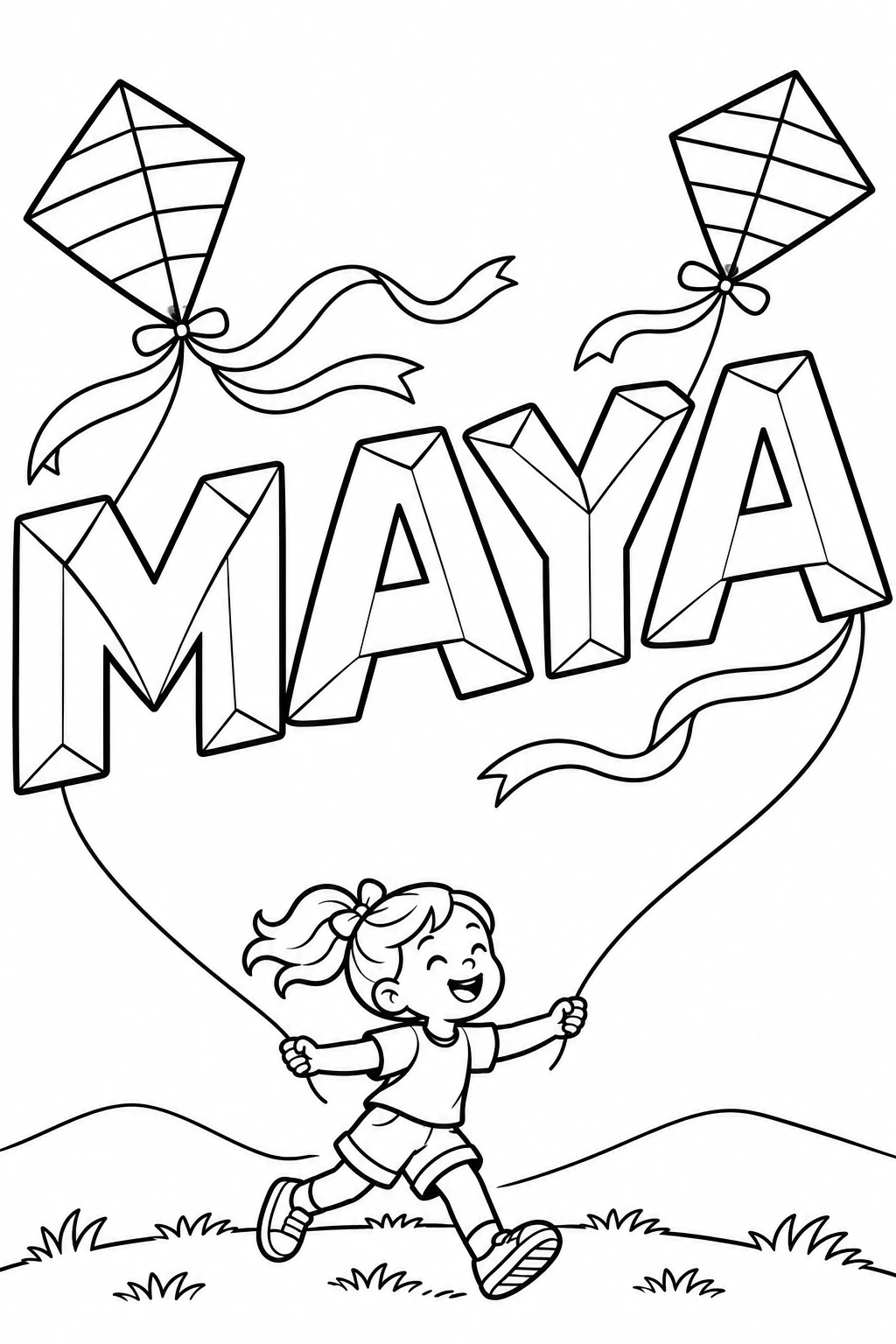
For a name or short phrase
Replace MAYA with a name. For more letters, ask for a landscape sheet or two rows and keep the kite strings away from the name.
Explore this idea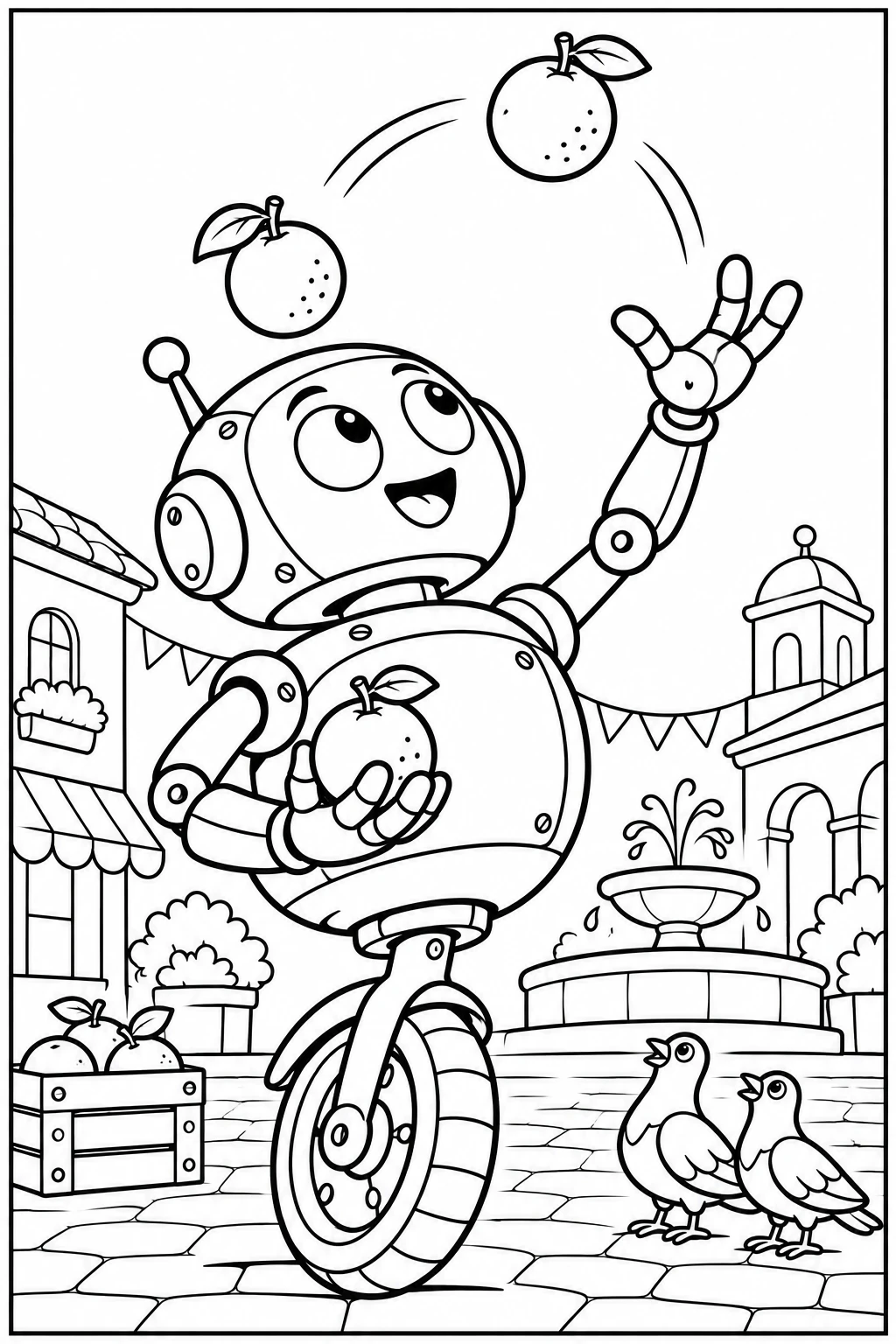
For a scene with a clear action
Swap oranges for apples. Ask for exactly three, separated along a clear arc so none blends into a hand or the background.
Explore this ideaWrite, shape and check your page
Say where things go
For a scene, tell us what belongs up close and what stays in the background. For lettering, specify the exact words and which one gets the most room.
Leave room to color
Try a landscape shape for a long line of letters or side-by-side panels. Choose Simple when you want bigger spaces for crayons.
Check one page before making copies
Look for spelling changes and lines that hide important shapes. If you need a new version, fix the relevant sentence first, then check the price in Review. Use the print preview to check the margins.
Questions & answers
What should I put in the Prompt?
Write what to draw, what it’s doing and what should be easy to color. For a robot, you might describe what it holds and keep the background open. Start with one clear idea, then add detail if it helps.
Browse ideasHow do I put a name or phrase on the page?
Put the exact words you want in quotes. Try the Lettering page type if the words are the focus. Describe the letter shapes and where they go. For a long name, try two lines or a landscape shape. Check the spelling once the page is ready.
Will the preview show what I’ve written?
If you choose a look preset, its example shows the style and the frame shows the selected shape. Your wording and detail setting take effect when you generate, and the finished page appears in the preview area.
How do I choose the image shape and detail level?
Try Landscape for a long line of lettering, or Portrait for a tall subject. Choose Simple for larger coloring areas. If your Prompt already asks for fine details, remove those requests too. Each generation can interpret the same instructions differently.
When are credits used?
You can browse, copy and edit for free. Sign in to see the price. We reserve credits when you submit and charge them when the page is ready. If generation fails, the reservation is released.
How do I print or keep the finished page?
Your account saves the finished page privately. Download the PNG, choose A4 or US Letter under Print, or add the page to a coloring book. Check the margins in the print preview before you make copies.
Read the printing guide