Turn Food Photos into Coloring Pages
Use a clear food photo to make a printable picture for coloring or a vocabulary activity. Start with a recognizable fruit or simple arrangement before trying a crowded plate.
- Clean outlines
- Custom styles
- Adjustable detail
Checking your account…

See what your photo can become
My creations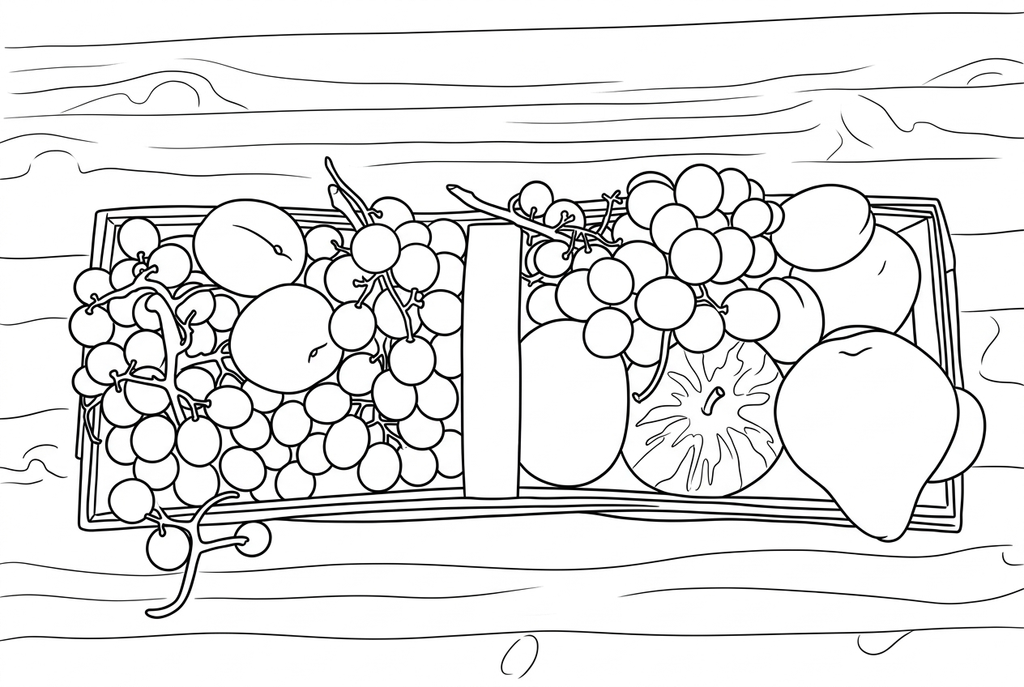
Generating your page
This result is temporary and has not been saved to your account.
Optional: save only the result to your account. Uses storage, not credits.
Match the paper size in your browser’s print dialog.
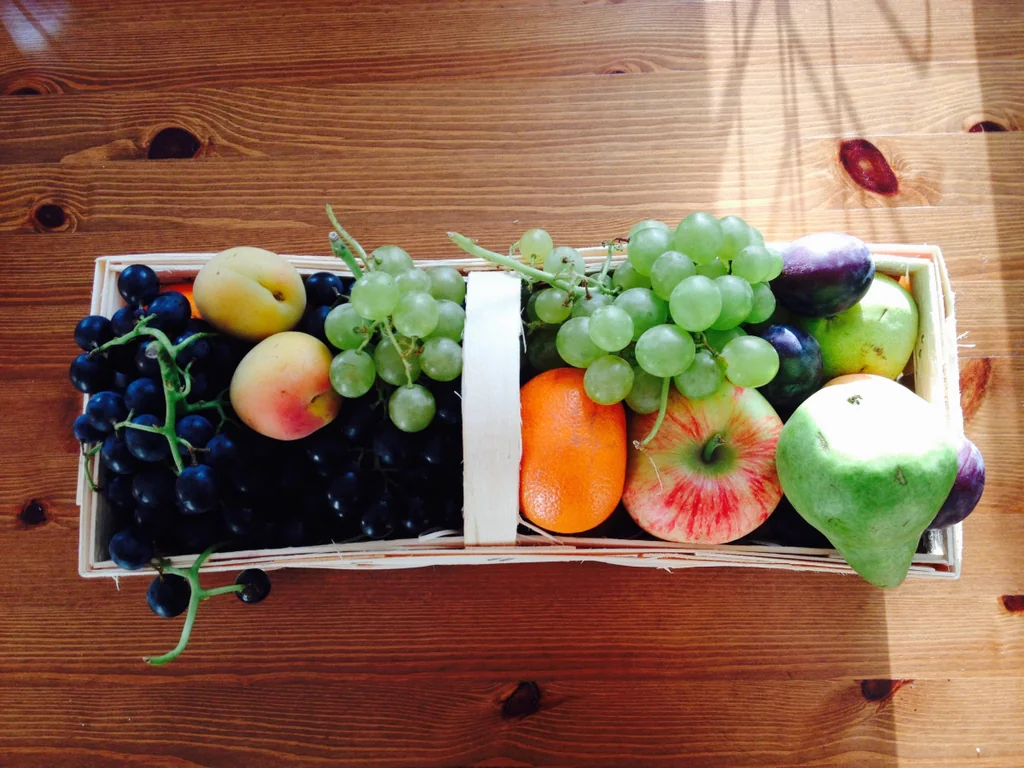
Photo: PxHere · CC0 1.0 · License
Redraw photo textures as clean outlines, with clearer shapes and open spaces for coloring.
- Choose a single food or a whole meal scene
- Adjust plate and food texture for coloring
Conversion status
You can leave this page and come back. Your AI task continues in the background.
Choose food shapes that remain recognizable without color
A simple item works differently from a plate full of overlapping ingredients.
Use one food or a clear dish
Choose visible boundaries between pieces, with a quiet plate and table. Decide whether the utensils belong in the drawing.
Reduce texture before adding more detail
Try Classic and Simple detail for AI. Compare Medium when a cut surface matters; Free can also pick up plate patterns and table edges.
Inspect the food, then label it by hand
Check the result against the real dish. Print a vocabulary picture or family recipe panel and add only names or ingredients you already know.
Photo tips: Food photos
- Choose one food or a small arrangement with visible boundaries.
- Keep a whole fruit's outline clear if recognition is the goal.
- For a cut fruit, check that the inside and outer shape remain easy to see.
- Decide whether the plate and utensils belong in the picture.
Compare fruit outlines with interior detail
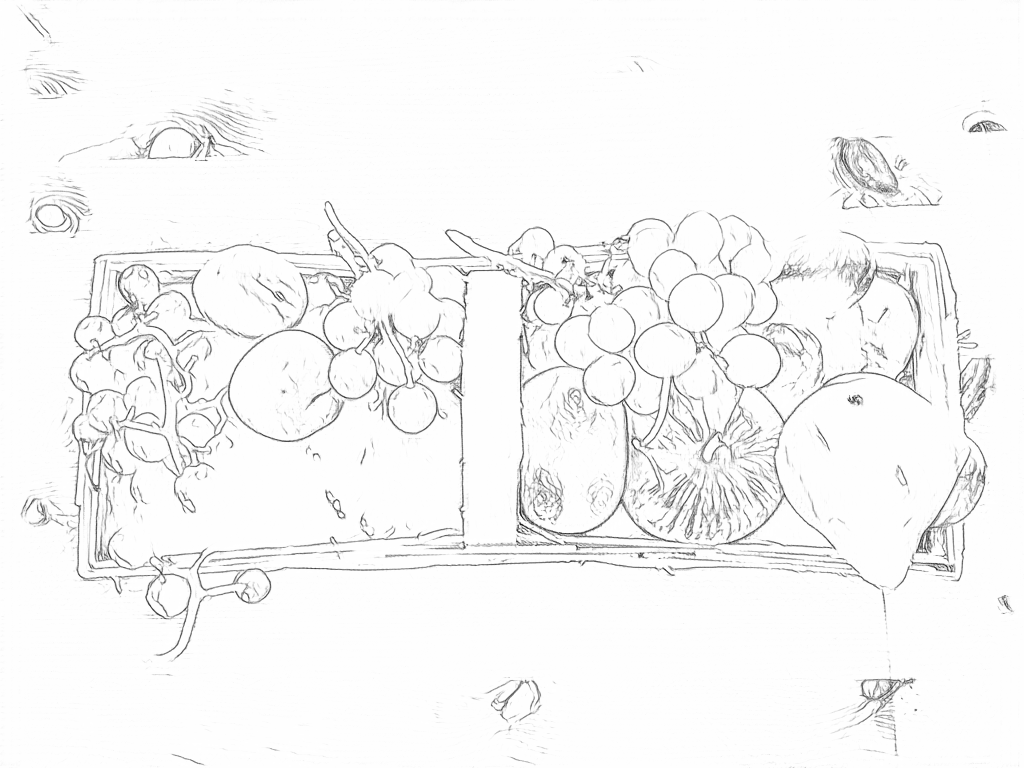
The basket and mixed fruit give several shapes to color. Free traces surface texture; AI separates the fruit and basket into clearer outlines.
Free: follow the visible edges
AI: simplify the drawing for color
AI can change small features. Compare the drawing with the photo before printing or making a keepsake.
Explore other AI drawing choices
Compare the starting point with two drawing choices from the same photo. Look at the shapes and lines, then use the settings beneath the result you prefer.
Starting point: AI can change small features. Compare the drawing with the photo before printing or making a keepsake.
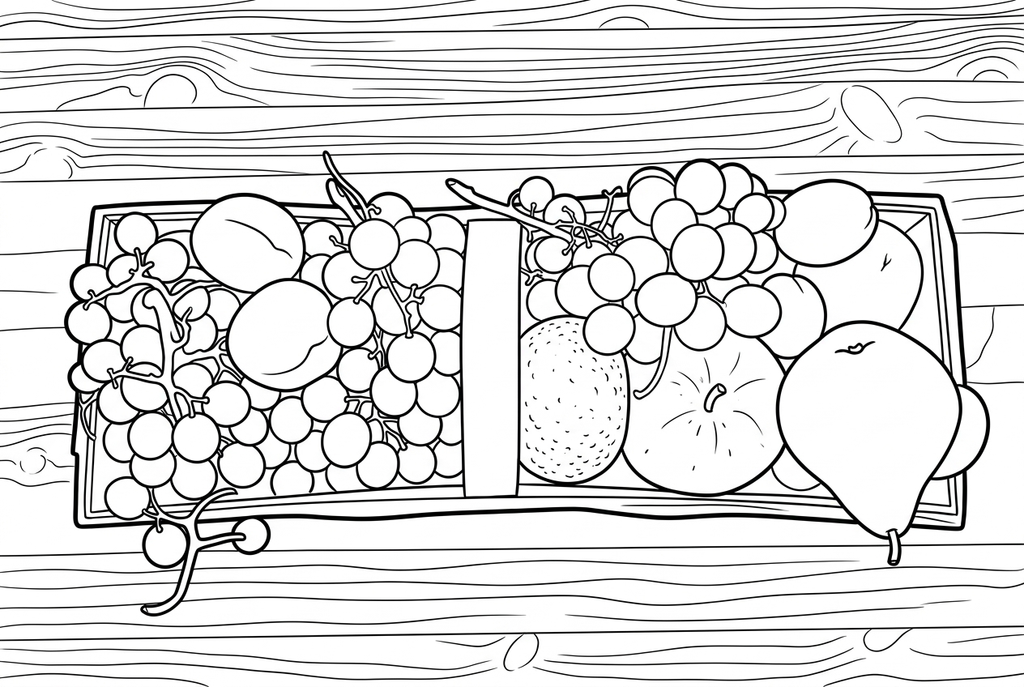
Compare the outlines and smaller details with the result above.
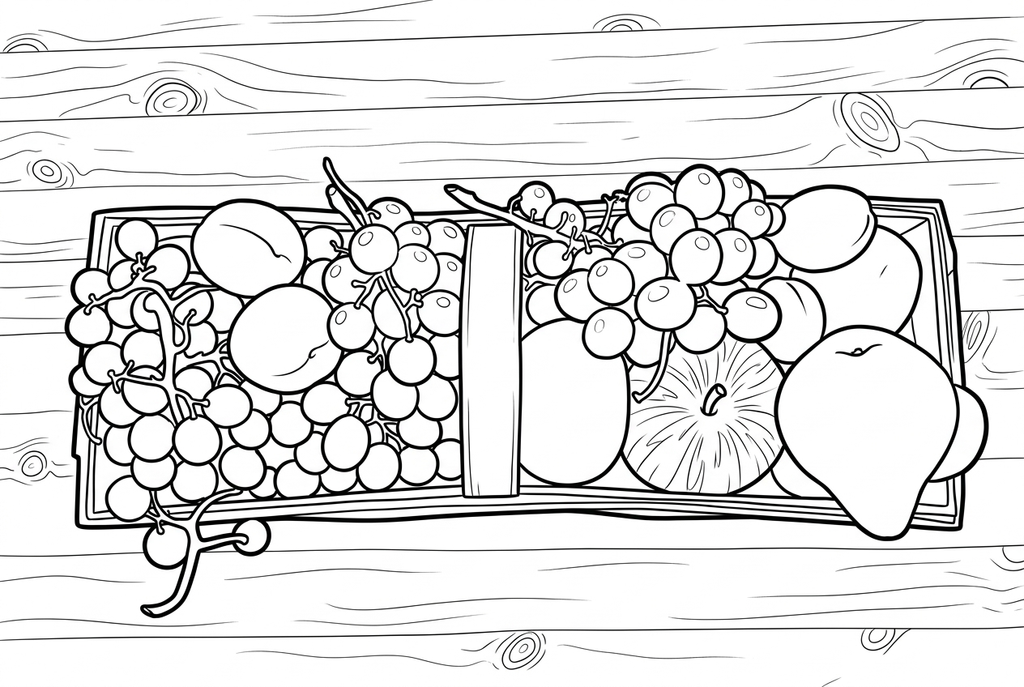
Comic with Detailed adds wood grain, fruit contours and interior marks. Small fruit shapes also change; use the source to check the arrangement.
See more results from this photo (2)
These are additional real conversions of the same source. Compare their settings and smaller features before choosing a drawing.
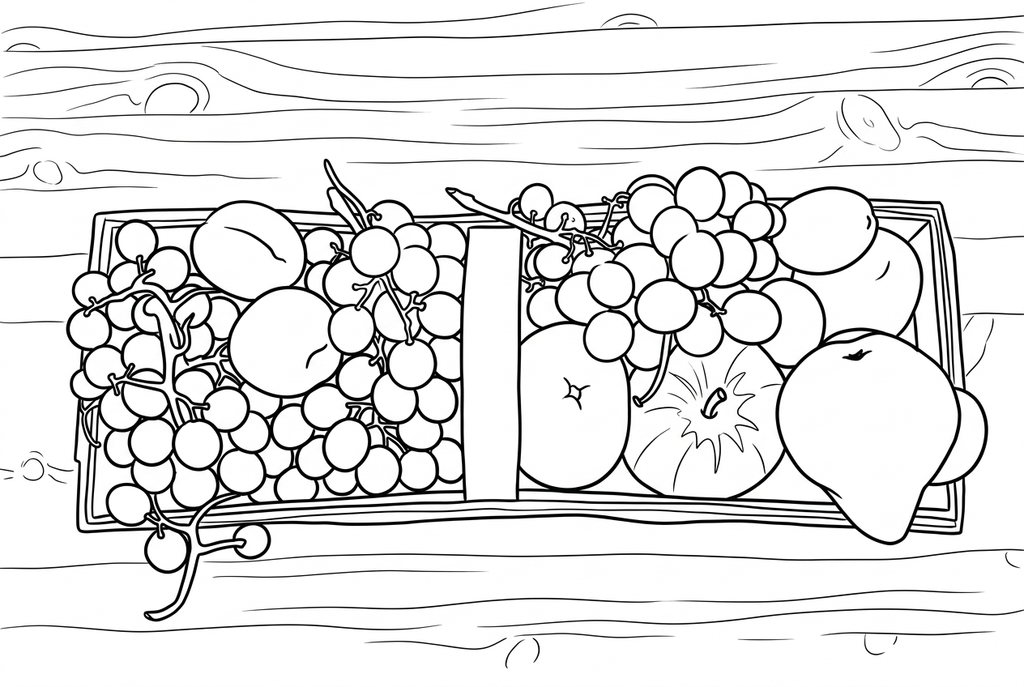
Compare the outlines and smaller details with the result above.
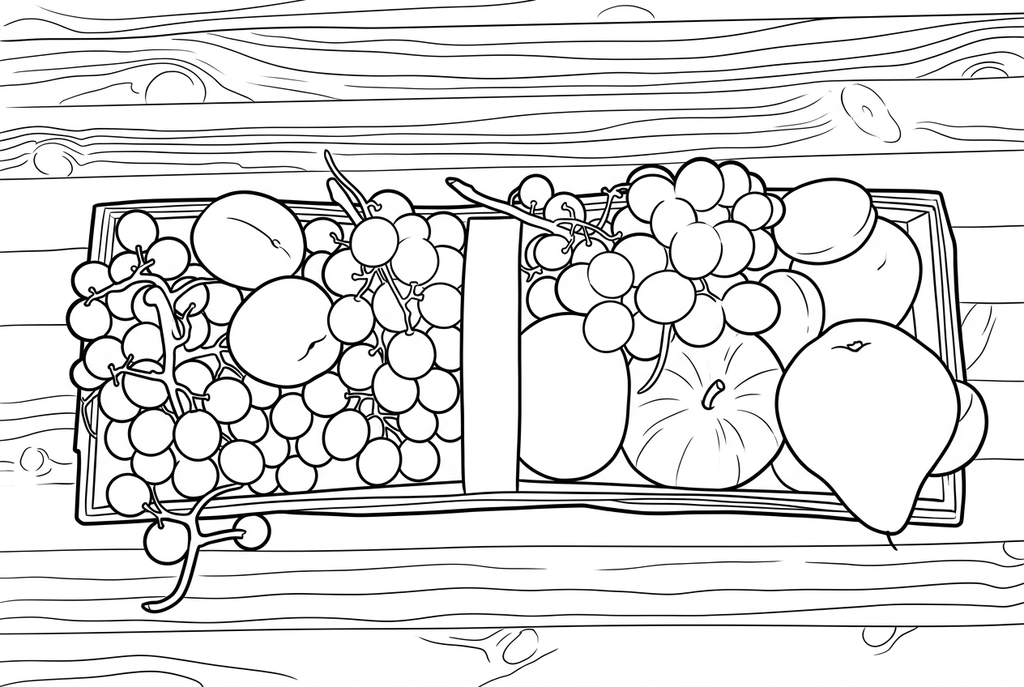
Compare the outlines and smaller details with the result above.
One food and a whole meal have different complexity
A single apple or a simple sandwich leaves larger spaces to color. A meal can contain overlapping pieces, sauce, cutlery and plate patterns that become part of the drawing.
Start with Classic and Simple detail for an AI object page. Compare Medium when a visible cut surface matters, checking that it remains recognizable rather than adding texture everywhere.
Shadows and plate patterns
Free follows photo edges and can keep a plate design or table texture. A plain surface makes it easier to see which lines come from the food.
Simplify background may help an AI redraw focus on the food, but it does not guarantee removal of the plate or utensils. Choose or prepare a cleaner source when they should be absent.
Make familiar-word cards
Choose different recognizable foods, convert each individually and write labels by hand after printing. Keep an original photo beside the result when learning the word depends on its shape.
The drawing does not identify ingredients or provide nutrition advice. Use it for the visual activity you prepare, with names you already know.
Check the drawing before making copies
Inspect the features that matter to this photo and its intended paper use.
Compare the main dish, ingredients and plate shape with the original food photo.
Inspect toppings, reflections and tableware for tiny areas that make coloring difficult.
Test the recipe-display print size and write ingredient names separately after checking the source.
Keep a result you can use again
Free: keep the file before leaving
Download the PNG or print on A4 or Letter. Conversion runs on your device; refreshing does not retain an unsaved result. Sign in only if you choose to save to My creations.
Free photo conversionAI: return to the finished task
Sign in and submit with the displayed credits. Open the saved result to download, export or print. Review the drawing beside your source before using it for the activity.
AI photo conversionPrint another copy of a selected result without generating again. A new AI submission uses credits. For a PDF from Free, use your browser's print-to-PDF option where available.
A ready-to-print page can work alongside your photo
These free coloring collections offer another picture for the activity, or a starting point when you do not want to use a photo.
Questions about Food photos
A simple item works differently from a plate full of overlapping ingredients.
Can it create labels for the food?
No automatic labeling is included. Add words by hand on the printed page or with your own layout software.
Why did several pieces merge?
Overlapping food and similar colors can hide boundaries. A simpler arrangement is a better starting point.
Can I make a whole set at once?
The converter accepts one image at a time. Prepare a few distinct pictures and print the chosen results individually.
Can I use a picture of a family recipe?
Yes. Treat the drawing as a decorative or coloring panel, and write the real recipe separately. The converter does not identify ingredients, quantities or cooking instructions.
Start with the photo you want to color
A simple item works differently from a plate full of overlapping ingredients.