ColorWillow · Chrome
Turn a website image into a coloring page in Chrome
Use ColorWillow’s Chrome extension to choose one image from a webpage, turn it into a coloring page in the sidebar, and download the result. Start with a photo you have permission to use. This guide is for Chrome on a computer.
Choose the image you want to color
- Open the page containing your image. If it is a small thumbnail, open a larger view first. Open ColorWillow from Chrome’s toolbar, then choose “Pick from current page”.
- Wait for the selection bar on the webpage. A suitable visible photo may already have a green outline. Move over a different image to change the suggestion, then click the image or “Use this image” to confirm. Esc cancels.
- Check the photo that appears in the sidebar: is it the right image, with the whole subject visible? Highlighting alone does not read the photo into the sidebar, upload it or start a conversion. With the webpage selection bar focused, Enter confirms the candidate; you can also Tab to an image link and press Enter.
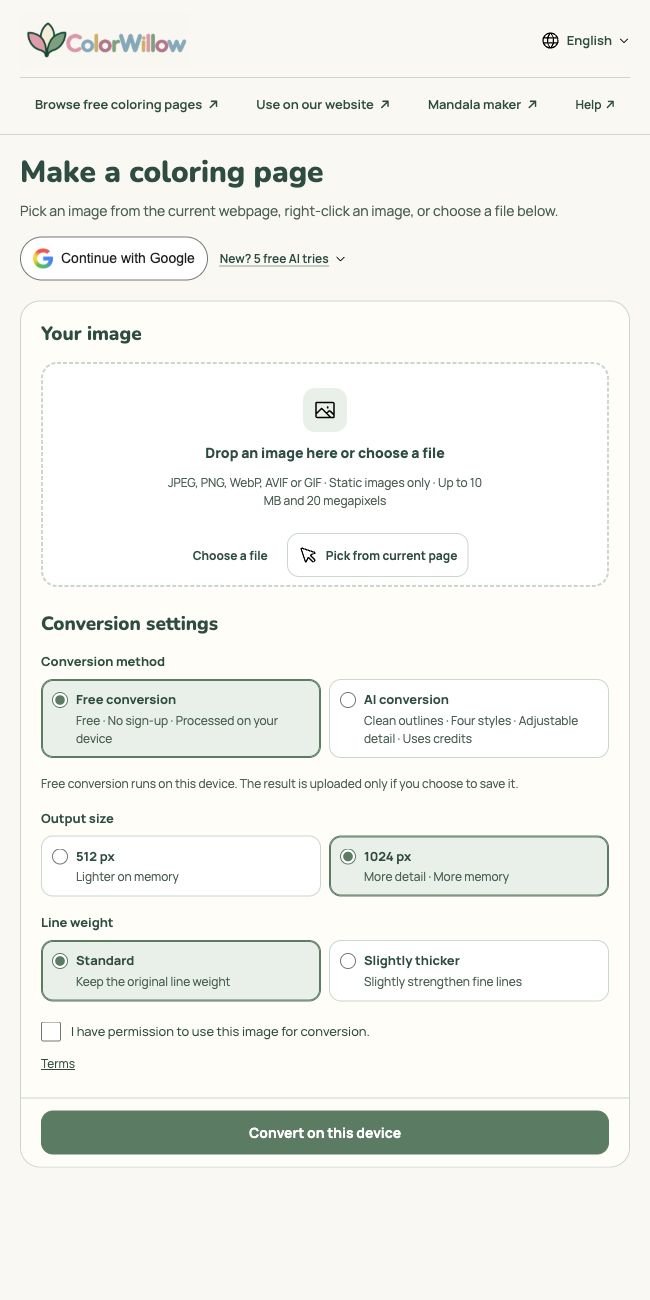
See the extension controls
Already know which image to use?
Right-click that image and choose ColorWillow from the menu, or drag one webpage image into the sidebar. For a photo already on your computer, use “Choose a file”. Ordinary page links and multiple images are not supported as a single drop.
Try it on this photo
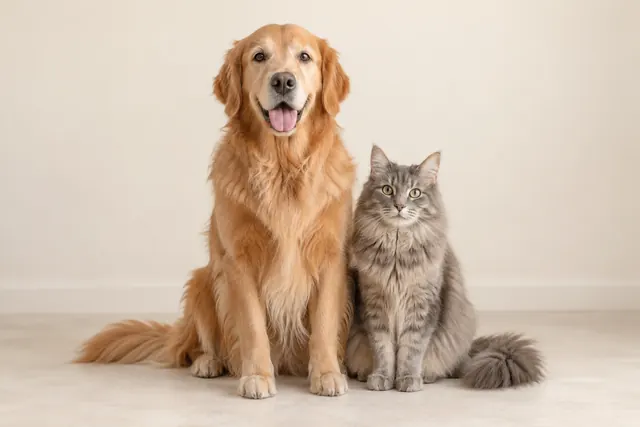
Before converting, you should see the same dog and cat in the sidebar—not a screenshot of the whole page or another nearby image. If the wrong image appears, select again. The outline is a suggestion; your confirmation chooses the image.
Choose a photo that will make a useful coloring pageShould you choose Free or AI?
Free conversion
Choose “Free conversion” for processing on your device without an account or credits. It follows visible edges, so fur, shadows and textured backgrounds can add lines. Pick an output size and line weight, confirm image-use permission, then choose “Convert on this device”. Increasing line weight does not remove unwanted details.
AI conversion
Choose “AI conversion” when you want to redraw the photo in a style or simplify its details and background. AI can change faces, markings or small objects; compare the result with your photo. Sign in, choose the style, detail, line weight and background, confirm permission and check the displayed credit cost before generating.
Sign in and use your account
Choose “Continue with Google”. The extension explains that it will open ColorWillow’s website; continue there to sign in or create an account with Google, then allow extension access. You return to the sidebar with your image and settings intact. The website and extension share your account, credits and My Library.
New to ColorWillow? The sign-in prompt shows any available welcome offer, including credits, standard AI conversions and expiry. The offer is for new accounts; signing in again or connecting an existing account does not grant it again.
Check your plan and credits
The account area shows your plan and available credits. Select either to view details on the website. If the information cannot be loaded, open the account menu to retry or check it on the website.
For AI conversion, confirm that you have permission to use the image, check the credit cost and choose “Generate coloring page”. If you are asked to sign in, return to the sidebar and choose “Generate coloring page” again. Signing in alone does not start generation. Missing-image and permission reminders appear beside the relevant input; conversion errors appear beside the action button.
In the extension, selecting a photo or changing settings does not start an AI upload. Clicking Generate uploads and privately saves the original before checking and submitting the conversion. Uploading uses account storage; generation uses credits. A price or configuration change may require a fresh confirmation. Saving a Free result uploads the drawing only.
Troubleshoot image selection and conversion
I clicked, but no selection bar appeared
Look at the sidebar status. While it says preparation is in progress, keep the original tab open. If it cannot start, wait for the page content to appear and try “Pick from current page” again. Cancel before switching pages. You can choose a local file instead; refreshing is not the first step if you have an unsaved Free result.
The page does not allow selection
Chrome’s settings pages, the Chrome Web Store and some protected pages cannot be used for webpage selection. Open the image on a normal website, or use a file you are allowed to download. If you previously removed website access, restore ColorWillow’s site access in Chrome’s extension settings.
The selection bar appears, but nothing is outlined
Move over the image you want. The first suggestion uses visible loaded photos, so a photo farther down the page or still loading may not be suggested. Scroll to it, let it appear and point at it. The extension does not offer a complete gallery of every image on the site.
An image is selected, but the preview will not load
For a temporary loading error, use “Retry loading image”. If the website refuses access, choose a local copy you are permitted to use. If “Use visible image” is offered, keep the image visible, select that option, mark the image area and confirm. This reads the area at screen resolution; it cannot restore hidden detail or an original high-resolution file.
The preview is the wrong image or looks too small
Choose again if a nearby image was selected. If a thumbnail or captured area looks blurry, open a larger source image or choose the original file before converting. A larger output setting cannot recover missing detail. Check faces, edges and the whole subject in the loaded preview.
I do not have enough credits
Check the available balance and the cost beside Generate. If the balance is too low, the uploaded image is not submitted for generation. Use the plans and pricing link beside the message to review your options, or switch to Free conversion, which needs no credits. An original already uploaded may remain in your account even when generation does not start.
JPEG, PNG, WebP, AVIF or GIF · Static images only · Up to 10 MB and 20 megapixels
Keep the result before closing the sidebar
Download the result as PNG, or choose A4 or US Letter and download a PDF directly from the sidebar. Both Free and AI results support PDF, with original proportions and a 10 mm margin. Exporting is free and does not run another conversion. Open the file from Chrome’s Downloads list to check it before printing. A downloaded file is separate from a copy saved in your account.
If you do not see a PDF button, download the PNG and follow the printing guide below, or use the Free web tool to create a PDF.
Free conversion
Keep the sidebar open until your Free result finishes downloading or saving. Choose “Save to My Library” to keep it online; if asked, continue with Google and approve access. Saving continues when you return. Wait for the saved confirmation before closing or choosing another photo.
AI conversion
Successful AI results are saved to the connected account automatically. Open “My Library” and your creations on the website to find them later. If a request has an uncertain status, use “Check / retry same request” to check that request before starting another generation.
Continue with your photo or drawing
Prefer to work on the website, or have your photo on a phone? Open a web tool below. The website has its own upload flow; the phone-photo guide explains how to send a phone photo to the computer.